# Welcome to PushPulse

Find help implementing and using PushPulse

<table data-view="cards"><thead><tr><th></th><th></th><th></th><th data-hidden data-card-cover data-type="files"></th></tr></thead><tbody><tr><td>Getting Started</td><td>Explore PushPulse functionality and learn how to get started.</td><td></td><td><a href="https://1237304485-files.gitbook.io/~/files/v0/b/gitbook-x-prod.appspot.com/o/spaces%2FYEKqXMDhT5qkEe8tbUev%2Fuploads%2Fn2esbTeKJoPK9KEwZW6K%2Fhc-rocket.png?alt=media&amp;token=a7a7f39c-bc5d-463f-bc6e-dfaf5c7396ee">hc-rocket.png</a></td></tr><tr><td>Product Updates</td><td>See what new features and updates have been added.</td><td></td><td><a href="https://1237304485-files.gitbook.io/~/files/v0/b/gitbook-x-prod.appspot.com/o/spaces%2FYEKqXMDhT5qkEe8tbUev%2Fuploads%2F3lfcbFu8Yb80Cz6Skvkx%2Fhc-question.png?alt=media&amp;token=b1a8c7e9-3d8d-4c8f-8e48-7c5cb5be7fda">hc-question.png</a></td></tr><tr><td>Submit a Request</td><td>Need help with the PushPulse Platform?</td><td></td><td><a href="https://1237304485-files.gitbook.io/~/files/v0/b/gitbook-x-prod.appspot.com/o/spaces%2FYEKqXMDhT5qkEe8tbUev%2Fuploads%2Fn7YvZ0N6tPD82t0l0yO1%2Fhc-lifering.png?alt=media&amp;token=28d2c9a1-75b0-473c-b22e-885b52b4ba3d">hc-lifering.png</a></td></tr></tbody></table>

## What is PushPulse?

PushPulse is a critical communications platform developed specifically to help organizations modernize the way they share important alerts and notifications. Our software and apps enable the sharing of critical communications across various channels, including digital signage, email, SMS, voice calls, and push notifications in real-time.

## Get Started

To create a trial account for PushPulse visit:

<https://app.pushpulse.com/sign-up>

## Get Help

#### Contact Support

Our support team is available to help:

<support@pushpulse.com>

<https://pushpulse.com/contact/support>


# Quick Start Guides


# v1 Getting Started for Admins

## Login

### Log in via the Web App

1. In a supported web browser, navigate to your PushPulse account’s login URL (i.e., [`https://app.pushpulse.com`](https://app.pushpulse.com/login).
2. Enter the **email address and password** associated with your PushPulse account and click or tap **Sign In**.

## Setting Up Account

Instructions

## Adding Users

Instructions

## Setting Up Notification Templates

Instructions

## Sending Notifications

Instructions


# v1 Getting Started for App Users

## Login

There are three ways for users to log into PushPulse

### Log in via the Mobile App

1. Download the PushPulse Mobile App on your mobile device via the App Store or Google Play

   App Store: <https://apps.apple.com/us/app/pushpulse/id1669930639>\
   Google Play: <https://play.google.com/store/apps/details?id=com.pushpulse.app>
2. Enter the **email address and password** associated with your PushPulse account and click or tap **Sign In**.

{% hint style="info" %}
For more information, please see [PushPulse Mobile App](/mobile-app/pushpulse-mobile-app)
{% endhint %}

## Permissions

Instructions

## Home Screen

Instructions

## Profile Screen

Instructions

## Receiving Notifications

Instructions

## Triggering Notifications

Instructions

## Acknowledging Notifications

Instructions

## Clearing Notifications

Instructions


# v1 Getting Started for Tablet App

### Log in via the Tablet App

1. Download the PushPulse Spaces Tablet App on your mobile device via the App Store or Google Play

   App Store: <https://apps.apple.com/us/app/pushpulse-spaces/id1669930642>\
   Google Play: <https://play.google.com/store/apps/details?id=com.pushpulse.spaces>
2. Enter the **linking code** associated with your PushPulse account.

{% hint style="info" %}
For more information, please see [PushPulse Spaces Tablet App](/tablet-app/pushpulse-tablet-app)[.](/mobile-app/pushpulse-mobile-app)
{% endhint %}

## Linking Device

Instructions

## Permissions

Instructions

## Home Screen

Instructions

## Settings Screen

Instructions

## Receiving Notifications

Instructions

## Triggering Notifications

Instructions

## Acknowledging Notifications

Instructions

## Clearing Notifications

Instructions


# Getting Started for Administrators

{% embed url="<https://www.loom.com/share/9d847522e4ff4f0ea66f2b222401c3cc?hideEmbedTopBar=true&hide_speed=true&sid=b33037f0-0726-4f22-acb1-f1edcb0b3310>" %}


# Setup Your Account - Web App Admin

Let’s Get Started!

Congratulations on choosing PushPulse! We’re excited to support you and your business! Let’s start by creating an account!

1\. Once you’ve signed up at <https://pushpulse.com/>, you’ll receive an official welcome email. Click Confirm my email address for next steps!

<figure><img src="https://lh7-rt.googleusercontent.com/docsz/AD_4nXdQ87c71m6Jv6GS0k5kByztRa6mvW6Pl7bhZphOVyW4kmKr3pKx6zlscb1I3pCA41OT3YWu4rzdXkIT4TsADanjf99Snfrby4NCxqORgufYDqEvRqy5tpKQ8bYbywl7Pq71mK9IOg?key=SNM7XlPvxnZHNGPLUWmvNFJ5" alt=""><figcaption></figcaption></figure>

2\. Once your email is confirmed, you’ll be asked to complete Organization Profile. Here, you’ll type in your:

* Organization Name – Your company or organization’s name.
* Website – Please enter your business’s website, if available.
* Phone Number – This should be the primary business phone number or the preferred account holder’s phone number.
* Organization Size - You can always add more later!
* Industry – Select the industry that best fits your business.
* How did you hear about PushPulse? – We’d love to know how you heard about us!

<figure><img src="https://lh7-rt.googleusercontent.com/docsz/AD_4nXdLwBfNgauKXnJsUXn_ZDrzQNvpaVF71TxWxZOwz2nYFTbQY8PLjVH1Hlm57ZWf2dsSoH1gSG1-k1OopQDwx_R6hjhB_V3oCb2FxuuyN2h9QENJoWMVmR2LMZ9A4ZLJWMPm4eNNyg?key=SNM7XlPvxnZHNGPLUWmvNFJ5" alt=""><figcaption></figcaption></figure>

3\. Click Next to set up Location Details.

4\. Type in your business’s:

* Address
* City
* State / Region
* Postal / Zip Code

<figure><img src="https://lh7-rt.googleusercontent.com/docsz/AD_4nXdOQd9LbmibjvBdR7Ap9oDilYvuAy5PeBGCDWyabahzl5eHE63X3NyPDqWWjH2oq--WL-KC_zfaLu5ml98_YE9H9n4l2LbCY4JxQ2tHkDQZH4rlce_3_s7RUHT_p6dMYuf5lhPN?key=SNM7XlPvxnZHNGPLUWmvNFJ5" alt=""><figcaption></figcaption></figure>

5\. Click Next to choose your plan:

Note: \* Pricing is subject to change.

6\. Once you’ve selected your plan, your 14-day free trial will begin!

Note: A credit card is not required to sign up, but a credit card will be required to continue use after the first 14 days. You can add a credit card once your setup is complete by going to Billing & Plan > Billing Method > Edit Billing:

<figure><img src="https://lh7-rt.googleusercontent.com/docsz/AD_4nXcq_HtSS6eReGBFgUaHczDXSpxlGiwPqjQTDdzCNOcib8we8jg6hLb_glDS5ce2eFFLHNpEXkWJU8_4F6Pbj9OVLAUSOIXCpRWOmfiMbnZST2EBj9eMbJvBuzOC1vnhzQRhVzKI?key=SNM7XlPvxnZHNGPLUWmvNFJ5" alt=""><figcaption></figcaption></figure>

7\. You’ll be prompted to download the PushPulse Mobile App next. This can be done by scanning the prompted QR code or going to the Apple App Store or Google Play store and searching for PushPulse.

&#x20;

<figure><img src="https://lh7-rt.googleusercontent.com/docsz/AD_4nXdbNT6FBoCucd-IwpwsKsKxsJd-xu1ZA1s2NNb5UCRgwYDzZupqbsbFjeYKH50IWowM9766NhgcXMzkWxUZK0W5wA32yNjdtseuXTdYg0oLXuq0rkVNGlzZYB3g-gpZP7vkg9zHhg?key=SNM7XlPvxnZHNGPLUWmvNFJ5" alt=""><figcaption></figcaption></figure>

<br>


# Add Your Team

1\. To add / remove users, navigate to the Directory dropdown at the top of the screen. Click Users.

<figure><img src="https://lh7-rt.googleusercontent.com/docsz/AD_4nXceeGLdm1YdYi7r9pBDLH-XD1Z_xk5S7l5bTu56CtLUrYNPVAa9Dw_Y3qepzX8z95e5wCBi0upxcgbA3HBGOM-EwVJvgeI1j11ExVK2KXoQdmhE0ro6piBYEfgoLzEFzMRwfXqFqQ?key=YytbXoqcERcsYXy7Xv5K0gd6" alt=""><figcaption></figcaption></figure>

2\. To add a user, click Add User.

<figure><img src="https://lh7-rt.googleusercontent.com/docsz/AD_4nXfVHqFkgOZ2yCOmC_sKpQS_WMB88GO5Zys1VTIEz9E6Msc3vYI9TkudvJAG-BuNAyklvzfEcW-v5T0T2Ks5xnUAkp_dJzfsxvC5q7zxZhNtIxXM3LciS6KidPwCBPR9gxW4Dw5o?key=YytbXoqcERcsYXy7Xv5K0gd6" alt=""><figcaption></figcaption></figure>

3\. Fill in the following information for your new user:

<figure><img src="https://lh7-rt.googleusercontent.com/docsz/AD_4nXdyqdJJPiI6DR2n9nASBbnCg5-Sx6ma-Rhh1QKC0RHVBMQsoIsM845iGk8E7lWLrRthdxfsCZrT24tRpk8PVEua3-5GX4Sg8j7eLEYnqeGTZFLDGzk3GBRsg_ICXAUN4XpP4mx4zQ?key=YytbXoqcERcsYXy7Xv5K0gd6" alt=""><figcaption></figcaption></figure>

4\. Select Notification Preferences for this user (PushPulse Mobile App, PushPulse Desktop App, Email, SMS, Voice), as well as the user Role (on the right). Role breakdowns can be found below:

<figure><img src="https://lh7-rt.googleusercontent.com/docsz/AD_4nXdK_Q3DxPoM1UxjeeNR2gpY82rHF2Rr5oVEx-cwnQ3liUGBx5WSVOrgXVvPUVD5y7FkgRvr0qcnBUMqNiSFGtSOlSzrovSwNNLYw9ebvNuTT33NNe3m32dFxacKQdpCUi1zbXPneQ?key=YytbXoqcERcsYXy7Xv5K0gd6" alt=""><figcaption></figcaption></figure>

5\. Once your user information (first name, last name, email address, telephone number (text and voice notifications)) has been entered, click Save User or Save and Create Another (if multiple users are being set up at this time).

<figure><img src="https://lh7-rt.googleusercontent.com/docsz/AD_4nXcd629v56haa20RPW__O1iqsth-ddyRMGG4b0oBUvMrp--yzZH8J8n_El55l7ujwMFTpnltcZHdlopjbRS2knh0OALDko9HqB6kDEtYrUMV_sZRb7zRuJ7LAYLHjQnwei0izUIl7Q?key=YytbXoqcERcsYXy7Xv5K0gd6" alt=""><figcaption></figcaption></figure>

<br>


# Download the PushPulse Mobile App

To download the PushPulse Mobile App, you can navigate to either the[ Apple Store](https://apps.apple.com/us/app/pushpulse/id1669930639) or[ Google Play](https://play.google.com/store/apps/details?id=com.pushpulse.app). Once downloaded, tap the app to get started.

1\. Tap Let's Get Started to continue.

![](https://lh7-rt.googleusercontent.com/docsz/AD_4nXerY7z3-az6C3LmPZwv0yhkOyVphjGpYa73-KtAqqzvuHkUDFbov1EQSZB1SWOaVgvW4CyB8BSYgqXQNIRbEmRI_zPNviCouGeKOojO4hsbKBb3cQjsBs2rbgDCbCV-DCbDtTaQmQ?key=GjeIOZZCTZLBhxRKF-asgmyJ)

2\. You'll be prompted to enter your email address and password to log in.

![](https://lh7-rt.googleusercontent.com/docsz/AD_4nXdNNen4q7zOu2PhYkpmx08urc3JnoK4eCPPrWBbjVt4v81ajizb5_Utll-cr4mAODSDllwXp43h7fJB8825EewZ1ifsk5B1uZXtrj3eEKoK0U0NtinOwmB9vZrVXjIJAIza5eTIcA?key=GjeIOZZCTZLBhxRKF-asgmyJ)

3\. Once logged in, tap Enable to turn on push notifications.

![](https://lh7-rt.googleusercontent.com/docsz/AD_4nXejC2kMXiIhdWe8RZVDVezWdHv02z2duch_N7Kpz-ZWCZ_rpmNc76rRxreNEvlFbES-JXk1Fhw1foGw_qQPUqflGo8s6-lpuTib_bnYYkaVEB5TkI6lkku8qbHPevqM2RlAcUJ_?key=GjeIOZZCTZLBhxRKF-asgmyJ)

4\. On Apple devices, you'll be asked to Allow PushPulse to send you notifications. Tap Allow.

![](https://lh7-rt.googleusercontent.com/docsz/AD_4nXeSB0rF6Qm3V70pV0gjnTwMYBFkrLEJbrjLay1dcCJ3woWBwmNnnslGlczG4PGuk3CzlUFyF2LgD3Yzt44XW_jM1mEnKcYJrsGkcbMrkyGtdTmTLcmMmFnNqdECeUBn6wyn5erlvg?key=GjeIOZZCTZLBhxRKF-asgmyJ)

5\. Next, you'll be prompted to enable critical alerts. Tap Enable to turn on critical alerting.

![](https://lh7-rt.googleusercontent.com/docsz/AD_4nXc4ywAtp3aHtIdBhfTzLEBOQWjT1QQT8jJLWRz7bfsHTgfAYugmHe17_iH0PbreBZ3XXuEkvGz5EhcZTBc82V9jD7-4srsVngsISVot_zJ0n5GzS3eqCCRE49kQKVaqBh2PnwML?key=GjeIOZZCTZLBhxRKF-asgmyJ)

6\. For Apple devices, you'll be prompted to Allow critical alerts from PushPulse. Tap Allow.

![](https://lh7-rt.googleusercontent.com/docsz/AD_4nXd-dUxMIX4-1iCTR_25-OCN12nvUEThiFTHixLUYWJrOmfMDG1SDdXIwZP3sMlsWc-FntijOvWYXg3h7aFeQjvG1_qPv1SW7nJCLZWsBDLdw5Lzn5Q43LXYSh-8ldongTHyQ3xx?key=GjeIOZZCTZLBhxRKF-asgmyJ)

7\. Tap Enable to turn on location services.&#x20;

![](https://lh7-rt.googleusercontent.com/docsz/AD_4nXcXe-hEKEWF82t-Y4ez9-jdxVyDzIacEYnYszbdVv44DfjxbFc2RmPj55GnzD9xRsLwPT-JR0ss8De7jCnypq01cxoL2rUabDqAogiwim53KK_yq_tprfJbRzHcMGDPhJVB6NuZJA?key=GjeIOZZCTZLBhxRKF-asgmyJ)

8\. On Apple devices, you'll be prompted to allow PushPulse to use your location. Select your preference. Note: PushPulse recommends Allow While Using App.

![](https://lh7-rt.googleusercontent.com/docsz/AD_4nXedVwOtgNcb2MDeqSOmfloWWVFxo4f2nRbBh288KCliGA4KQSbDwYZGtkKPnj1itu6sfaKCf5HCzCzlkncWn-WIUPUW5MPMAk4nfeORwNfNecKvjJR9k3AEhPmZwY4IRvnPp-Uvsw?key=GjeIOZZCTZLBhxRKF-asgmyJ)

9\. You'll also be prompted to add PushPulse as a contact. Tap Enable to add PushPulse as a known contact.&#x20;

![](https://lh7-rt.googleusercontent.com/docsz/AD_4nXcr96zspTM1wGxyeoR7Er1EYkg3f3UPAGWBSeZxeCQm6tNBlMPcwMfmeDHO4d_7VSAbbXU-yifYrOlQS8Pi1IUiUh_kKOhuHstqHXt9rdM3Ii9voV1RHatjUeBQntnyPkU2BfK9zg?key=GjeIOZZCTZLBhxRKF-asgmyJ)

10\. Tap Allow to add PushPulse to your known contacts on your mobile device.

![](https://lh7-rt.googleusercontent.com/docsz/AD_4nXdTdmlVqhgG01vnijqsZriS24KL6W2rqu_rf4g45fd6jWAMycchPq7SE4ZKkPVHLrOsfzuvaS5MKVeLa0HjniXDp16ybk0SU_-ZkblZf99afiex5xUyD0VdgXCs9KNM6W_yNY29Sw?key=GjeIOZZCTZLBhxRKF-asgmyJ)

11\. Once your setup is complete, you'll be take to the Overview screen within the app. Note: Initially, your Active and Inactive modifications may be blank as a new user.

![](https://lh7-rt.googleusercontent.com/docsz/AD_4nXc6T8qP1mCv-vF9iZht5nZbZtq03XptzE8A_uRsKdPyUB0PiqBTKDw85kCLymJ5629KXGgP_lyYmSmDUqfJYpm_vh2dKnnlcjXXY3x0aB5RMnzm5oS_T9uzIphHmxBsi_lUSCT2?key=GjeIOZZCTZLBhxRKF-asgmyJ)    ![](https://lh7-rt.googleusercontent.com/docsz/AD_4nXe_YjfGPUcoVVkEs5fTf11_oVR824DF4K_6qRBSINPb5VqwKyFxOTnPdpmAYG-KMV35FbXD4UaUzae01ZK38q1A8rdMqYRuz3QI_Aj05DuWsnEVi8HUrq9SMnZvdK62RP0BwEBFSA?key=GjeIOZZCTZLBhxRKF-asgmyJ)

&#x20;

<br>


# Download the PushPulse Tablet App

To download the PushPulse Spaces app on your tablet, please visit the[ Apple Store](https://apps.apple.com/us/app/pushpulse-spaces/id1669930642) or[ Google Play](https://play.google.com/store/apps/details?id=com.pushpulse.spaces\&pli=1).&#x20;

&#x20;

1\. Once downloaded, tap the app to launch.&#x20;

2\. The PushPulse Spaces app will immediately prompt you to enter in a Linking Code.&#x20;

<figure><img src="https://lh7-rt.googleusercontent.com/docsz/AD_4nXcmSRDnkXK86YGPhvJG1lFY9dYZXdU-I4SVe1A4WUjHQVQgf3zgpaFdbFuUrFCP07yNX9l24gPxBuX6Durgk17zLzY1mQltTGcUV6CJKIVIgOHX5BIq5_G3mALCj105W18vUYjhEg?key=pY8bjtGFn4sELTnQeGnfinJq" alt=""><figcaption></figcaption></figure>

3\. The Linking Code can be found by your admin via the web app by clicking on the gear in the upper right-hand corner, followed by Displays.

<figure><img src="https://lh7-rt.googleusercontent.com/docsz/AD_4nXcgEOw4kJS7Ik6tyBanbdpQzEDiGbLMHnTFagPUEmtWoNld0bPkRhgVMlM1lX4FeoxlkZVOsVwcvE4cZvhan_WrCwbWdA7_prH5fU_tc1rr9YcN1ULsQNrrZ7fPWZAqW3SoAq748Q?key=pY8bjtGFn4sELTnQeGnfinJq" alt=""><figcaption></figcaption></figure>

4\. Select your Space, based on the primary tablet location the tablet will be used.&#x20;

<figure><img src="https://lh7-rt.googleusercontent.com/docsz/AD_4nXfIHiLrAYeoaYptkG5ZuAsVNwNmk1AjvGFARBnQzZEfhN6f-ikxfW04kLZtyxFsiphCg1O8eV_cIDQeIcAuc9_4Fc_AMQPK0hsaiCHnyt9xklVZ8BcWSWQZI5Btyz-Xqcb7W1yOeQ?key=pY8bjtGFn4sELTnQeGnfinJq" alt=""><figcaption></figcaption></figure>

Note: Spaces available to select from will be set up by your admin.&#x20;

5\. Tap Enable to enable push notifications.&#x20;

<figure><img src="https://lh7-rt.googleusercontent.com/docsz/AD_4nXfjvAcIxYTIDLU07PNDf8PiIXo3wh0zS9r9grl76eINarNHr70lis_w_u7HnKLrSfd6e-W0hvPht-Ld7BWTBmAWwZ2c7aGV1g9Zbtm7KTLVtzOHuyaHhBEvYGIAUpmmIGvqm0rqDg?key=pY8bjtGFn4sELTnQeGnfinJq" alt=""><figcaption></figcaption></figure>

6\. Tap Enable a second time to enable critical alerts.&#x20;

<figure><img src="https://lh7-rt.googleusercontent.com/docsz/AD_4nXe3yiXZtR2V_NIgLhiAJFjC8QJEo72g_QwNAfBR2CYIlxY0ATI8qZxKe1LmJHcfo2XctkyLafhrR9BUjw1eFLERqSKcM4LkfaDJbExaP_8areoy9pyAe1e6kKp7vZrU-LHmhfSpkA?key=pY8bjtGFn4sELTnQeGnfinJq" alt=""><figcaption></figcaption></figure>

7\. Once enabled, your locked tablet screen will appear:&#x20;

<figure><img src="https://lh7-rt.googleusercontent.com/docsz/AD_4nXfOUQLDiZSnttby4d3fK7m0hgqJPCC_iGE1VoEp6oStWk7Vu1HhQiOpMgyHVYkfZXo83DvsVKQ8kGIlliuGu8i9HR14QWWZsA3KLEizE-18imL-WtKbux6gl9ORiKBS2UZuSKneRw?key=pY8bjtGFn4sELTnQeGnfinJq" alt=""><figcaption></figcaption></figure>

<br>


# Send Your First Notification

PushPulse gives the ability to quickly share critical communications across various channels, including email, SMS, voice calls, and push notifications in real-time. Notifications can be sent from the Web, Mobile, or Tablet App.&#x20;

&#x20;

Send a Notification from the Web App

Send a Notification from the Mobile App

Send a Notification from the Tablet App

&#x20;

### Sending A Notification via Admin Web App

New notifications can be created by going to Notifications at the top of your web app screen.

<figure><img src="https://lh7-rt.googleusercontent.com/docsz/AD_4nXcqeIsDfn2OXWhYhfbHg-juU_JDrQjjbhkQZzxwzEzNyS2ctGsb1R1vmy1c-QpJbKrspHsOt6XoumhtIRbcEcP32XaD2MiAOXYE9v9KB2huiMizFk5ge10uP29ZKDsEJ-q_TGFkjw?key=djKBz7qUDCbLIr5HBmg0j6k_" alt=""><figcaption></figcaption></figure>

1\. To create a new notification, click + New Notification in the upper right-hand corner of the Notifications screen. You can select a template or create your own notification by clicking on Create From Scratch.

<figure><img src="https://lh7-rt.googleusercontent.com/docsz/AD_4nXct0H83cAeMC5eEPsDbP-v2S4iX7KiJDjExBKeJBel4peI6_wP4pPylX4ZuSliIrv-2hS0Lpi3qIeKddUz2qhSj7m1-jf4TvymqHqt-UEm7K5YK6MY2UX7XPMIL1Hyc-BizBLfaIA?key=djKBz7qUDCbLIr5HBmg0j6k_" alt=""><figcaption></figcaption></figure>

2\. When selecting a templated notification (Fire, IT System Outage, Lock Down, Medical Emergency, Panic, Staff Assist, System Test or Weather Alert), you’ll be prompted to fill out the required information:

<figure><img src="https://lh7-rt.googleusercontent.com/docsz/AD_4nXcC5SK7MhasQXFHSXslIRyg0PoHaIBaM9JR26GYOWFplOT9kntrPwm10JNknIzHoSL3sYdYr-WP8aVC4hj0zqYrURs-vdUg1JgPTBJY5xlCScLoYok8X7ACfqO9yWmesN62pk1PHQ?key=djKBz7qUDCbLIr5HBmg0j6k_" alt=""><figcaption></figcaption></figure>

Note: If you find you’ve selected the incorrect Notification Type, you can simply click the dropdown and select the correct one.

<figure><img src="https://lh7-rt.googleusercontent.com/docsz/AD_4nXdHzd-Fz9i6q9GIoulzucaswi_IS2I_IVMb4nEi4DNmCN8k-FNqHUIm9ziKPf-V8N4joPD11nzDHeMjfw80yQ5l4OZyUuPlU4o7GnWj3T1Jr5p0dSVVgQl4Bagp2d3xNuWuSIE3lQ?key=djKBz7qUDCbLIr5HBmg0j6k_" alt=""><figcaption></figcaption></figure>

3\. Confirm that the Title is correct. Otherwise, you’re also able to customize the notification title (i.e. Severe Thunderstorm Warning – 6/6/2024).

<figure><img src="https://lh7-rt.googleusercontent.com/docsz/AD_4nXe7Syv95BZkOmcKcVLq5ITi9IkyzCJxqEAP52cFQI3eerkxaRnyRPTSEYImfUB2AvXdVdl5-zAU1nXQoPXsU6Vu6OyPJwzOOcnK99TkBUJlBM7wRkGIDpkYkuGMl5TCYhgyfJ1uxA?key=djKBz7qUDCbLIr5HBmg0j6k_" alt=""><figcaption></figcaption></figure>

Note: You can also customize your notification name by clicking the pencil in the upper left corner.

4\. Create a customized Message for your alert.

<figure><img src="https://lh7-rt.googleusercontent.com/docsz/AD_4nXfugTL-DMTNUZbj4vVTKhnbZbgbyd9Gom6LTIewW_4PPlABypJi3ezkiBqLaqb5yZqty3QqES8q7Sv5O1j4RGU4UZdlif-XBm3l2Xnv_lVqCbpPyyveXtdVzbXnAJHu3jbFwE_07w?key=djKBz7qUDCbLIr5HBmg0j6k_" alt=""><figcaption></figcaption></figure>

5\. You also have the option to select Request Confirmation? using a standard confirmation or a poll.

<figure><img src="https://lh7-rt.googleusercontent.com/docsz/AD_4nXelR1hSyisg3gOYESc1ITLP55LSl3jVvRL_6X_G_LdOsVS2UTHSTD38ihdbKMjWypmZemnOYXXzv79TN241MG2CnY4EQ7K0pBKTTHuaeVNEebSWE5MRtk-nZJA0s7GMVDrXh5ZXNg?key=djKBz7qUDCbLIr5HBmg0j6k_" alt=""><figcaption></figcaption></figure>

Note: Both the Prompt or Question and Response or Acknowledgement fields are customizable.

6\. If you’d like to request that your responders reply, click to turn the toggle on:

<figure><img src="https://lh7-rt.googleusercontent.com/docsz/AD_4nXc3cYGImy5JbgBvKr0fUt9yiMb7Rzmg04EprcUsK0N1ZV-TfYXGQfJIoRsFmfSfmhCmpNalt4qQGo1P8fr8eu45Z9ZmZgXx6AQyuGqOcOiaZLRO5kounlvYwMqNX0TEjgjiG4TfMQ?key=djKBz7qUDCbLIr5HBmg0j6k_" alt=""><figcaption></figcaption></figure>

Note: Both the Prompt or Question and Response fields are customizable.

7\. Once you’ve filled in the level of detail you desire, you can either click Save for future use or click Review and Send to send immediately.

<figure><img src="https://lh7-rt.googleusercontent.com/docsz/AD_4nXdOPJkiLi4rkNGsLFnQ5ULnSvIOnMLyBEH32zCAjc0Rj5pdoZF538FF4Cb-TFUSiMiact16XNCVcEAjEyvmLFh5e12dVGAPptqnZEzi8ZcaAn-DzRuiNvH06dSeo-UkCOrBxgKRWA?key=djKBz7qUDCbLIr5HBmg0j6k_" alt=""><figcaption></figcaption></figure>

8\. By clicking Review and Send, you’ll be prompted to Send Now.

<figure><img src="https://lh7-rt.googleusercontent.com/docsz/AD_4nXcjWN1dz9M1CN-6XSRQjrF9qfzYpeXWNdICx5iGNF9Dpgo9bG5Gd7gHpyucOrB2uipBGkzAM84Pl7YUOpbRf-az-rCEvBnUE2W19yojhjONRux606iWVQfGZ-kQX8hiDgO6zZbw4g?key=djKBz7qUDCbLIr5HBmg0j6k_" alt=""><figcaption></figcaption></figure>

9\. Once you click Send Now, you’ll receive confirmation on the screen that your notification was sent. Notifications will be sent to your users based on notification setting preferences. Note: Below shows email notification and push notification via the mobile app.

![](https://lh7-rt.googleusercontent.com/docsz/AD_4nXfE4JHf7PcclCZctIEQDwKro4r0_nN7z57tdufzh4QJIBf3QaPDAXqUbhMLnuj0uYOvPtbhv5HcicAkwzw78664ctOyGJOjiVtV80MQkWEbsmIGpRVFYNOHCfnPYanlV3_kaGBG?key=djKBz7qUDCbLIr5HBmg0j6k_)![](https://lh7-rt.googleusercontent.com/docsz/AD_4nXdKBkzmfI3c57Hmjd2dalC-GGEc8S2m8vZUEDj6L7XkSY7_5QBBbaiM3VSduOfN0qEaX_WCZ0OtqUyI2qB2OC1PBGlOqEPIv40PC77H77pvlfxuoWS8Aax19Wy5tVUqoYMZ3wfB?key=djKBz7qUDCbLIr5HBmg0j6k_)

10\. To check the status of your notification, the Notifications dashboard will show your notification as ACTIVE. To view more information about your notification, click on the notification Name.

<figure><img src="https://lh7-rt.googleusercontent.com/docsz/AD_4nXdaEOtIy81BT3GqHaSwU3XxfLdrEbg0rANN5BnbSvC0vj8lAaOzbWM_ITP7zgcVMjlLj4BY4Hama7Lx0taCOA0XR0-xKqlz8zQpof3IBjUL1zHHMGd6vx_ZoNsQ5CTlxntzJuN-?key=djKBz7qUDCbLIr5HBmg0j6k_" alt=""><figcaption></figcaption></figure>

11\. From here, you’ll be able to see notification location, delivery status, and much more. You can also clear your notification.

<figure><img src="https://lh7-rt.googleusercontent.com/docsz/AD_4nXe2HFNqZN3gdtQ5GoOjc3X_Ja5W0Aev8l-xR3ExDQeqO-4cYiD-_3EpizxZG1KaUhF5QRrD5ox9oV8-7_MWoOs2QtkDjY0KoUrIW1fuFUAPq49ToC4aqPNCMZcgFvhe15YPlzz5Hw?key=djKBz7qUDCbLIr5HBmg0j6k_" alt=""><figcaption></figcaption></figure>

12\. To clear your notification, click Clear Notification in the upper right-hand corner.

<figure><img src="https://lh7-rt.googleusercontent.com/docsz/AD_4nXfyqRUXA63bWGAFEPKaPWhxaU8HZO7xbsw-4uJOyZE-9Y8L8LTDwZdjK7EDtyRHRB7fJ281mbUvkLDYZ0aG0MDVkniMNyjiXAU6BidnVPYTsrTvXgtQ_YAocbT6MvMV4J7MWIl-OQ?key=djKBz7qUDCbLIr5HBmg0j6k_" alt=""><figcaption></figcaption></figure>

13\. To confirm clearing your notification, click Clear Notification. You’ll receive on-screen confirmation that the notification has been cleared.

<figure><img src="https://lh7-rt.googleusercontent.com/docsz/AD_4nXddXAOxbh80UFRcnkxkVESCPX510X2Hu71vp18tWA2nMy0Oczw9IxrzTlsxu3yqyE35SOBu3_aAzmeKs5dSFjBEZaFr6YuI_JBNEv9TMpxwJ7BOK6HS-I8lFzZfu4zclHvym6u_Lw?key=djKBz7qUDCbLIr5HBmg0j6k_" alt=""><figcaption></figcaption></figure>

14\. The notification status will change to CLEAR on the web app.

<figure><img src="https://lh7-rt.googleusercontent.com/docsz/AD_4nXfAdRA7s7bMjH4hhufYTSme5PIr63LwoRiP5-0p6sP3qonj5ccbMeKsG3mTlASxpSjBiVteE7UyWDNL1DinYu6muo5Oz1nPWrZQkMPO2nR8FhHlg42jKVG791Y8_12_44lFrLcOIQ?key=djKBz7qUDCbLIr5HBmg0j6k_" alt=""><figcaption></figcaption></figure>

15\. The notification will also move to an Inactive status in the mobile app.

![](https://lh7-rt.googleusercontent.com/docsz/AD_4nXe3Hr6Yw1U6_iRoCod4OCgvSebwiHiUN4bQM2UPKYiOQ7ruMSZT73AyW5Fex04zsjhI8jWdG2umUmQpkBPnebsnxEwAFBccL4fQ2M6UD4vjZPcoFfoDaefpBqwzYOUWWofqdD6vhQ?key=djKBz7qUDCbLIr5HBmg0j6k_)

### Sending A Notification via Mobile Phone App

16\. By tapping on the shield, you'll be prompted to select a notification to send.

![](https://lh7-rt.googleusercontent.com/docsz/AD_4nXeYiwvYHffcvtjAjcFEWSxG-BQUuGOowSx_ADQgjUAxegk8sLf0A-T9l8iaIdAYdUYJfh2gdvyV_nmtXVb8yjObm2mlwLR9ZFYlahuzk6uMocTCj-_3jPLmewChVPuD2LvuY5FTHg?key=djKBz7qUDCbLIr5HBmg0j6k_)

Note: You can add additional details to your notification prior to sending. (i.e. Thunderstorm warning is in effect until 9PM ET.)

17\. Once you've selected your notification to send, a countdown will begin before the notification is sent. From here, you can also tap SEND NOW or CANCEL NOTIFICATION.

![](https://lh7-rt.googleusercontent.com/docsz/AD_4nXdw3v69mYgPLM6leAblQtiGvwTPzhP9HAQy04rp3-EvgA3Yvj8LADCeBBNfGFnaD0Sr9H7_T_E2xQreQSMyKrBVmfn_MEnHjhrwrT0IjJX_ixNcwsa58XEurFTjtYZydg8JV1Ivrg?key=djKBz7qUDCbLIr5HBmg0j6k_)

18\. You'll receive confirmation your notification was sent.&#x20;

![](https://lh7-rt.googleusercontent.com/docsz/AD_4nXeau8Ujb7GJZ4AqNBmVF9zDEb00I4wKaOZ8lGxgNb0XQtMB7EwxqyBvkcWXgWUEgmf_MayvQcBlkmFh_XhNxIR7ZE7qUXUwyfSBuAlgD-_F0jM7aWUsi3jyvmWZWZLR2V0XMFnr?key=djKBz7qUDCbLIr5HBmg0j6k_)

19\. By tapping CONTINUE, you'll be taken to the Active Notifications screen to view the notification.

![](https://lh7-rt.googleusercontent.com/docsz/AD_4nXfDe7GIyqCc-mqDfjD8yVUS2oL-slzP8N5apgAXuGjKAb6gvt8AYWuF1-Tc131bEUGwCDhnkX9O9GznfgXQ7LLQPR0p0McewPqNfY6PF7k5P-wb0OCl6F9asyceVrCQ1-H6IurgIw?key=djKBz7qUDCbLIr5HBmg0j6k_)

20\. By tapping on the active notification, you'll be able to see details of the alert. Notes can be added by those authorized, as well as clearing the notification. Note: Only users with the proper authorization can clear notifications from a mobile phone.

![](https://lh7-rt.googleusercontent.com/docsz/AD_4nXc3DPx1SwIAuEzBey5vbj8CdxI2AUp92PHmRQBARTwuWLo5FbDPiGOiwDxOZ8lKEVp7qO_zPtATTsnE_F9Z-WO6qWPqI6WZenlDR0A7eSkYDlLVtNfj83IBx5zjUCFOAFjzncRNMg?key=djKBz7qUDCbLIr5HBmg0j6k_)

21\. By tapping Clear Notification, you'll be prompted to confirm. Here--you can also toggle to send notifications to your recipients.

![](https://lh7-rt.googleusercontent.com/docsz/AD_4nXf1ONx-X8F2ntUMFoz5_rzrJpCY5-rVQciYiIU7O1Z66rbZar07VF05Zyd4f_kjAhmZQDZmAiOtiYK4Cj8HqBC-8GvTiUwiizZ5Gtv5gHvR3JAfdwxRvd3G3R4TAj0a40Rsa9f_?key=djKBz7qUDCbLIr5HBmg0j6k_)

22\. An all clear notification will then be sent.

![](https://lh7-rt.googleusercontent.com/docsz/AD_4nXcTCqWJ7d-x2Zwj5KRPbGpPol5NX7e6ZUkqIpuAht02RYYY8Bff4gyHBirzxHTNk1EmTArk_yYPnNcD-dCPCJCJBru0V0ahB0uwZUT0BY723beXF5cHhQHnzrJyqj_eZyRX7K3b?key=djKBz7qUDCbLIr5HBmg0j6k_)

23\. The notification will then go to the Inactive Notifications list from Overview.

![](https://lh7-rt.googleusercontent.com/docsz/AD_4nXeou-BPP1bNCCbe90_CXKeKG3gY40oRKFcezxm2ZPJyL6aeOXmOAkMHtIxib7E7Vo6p9tr0nj9WErb-6AMOYjjTVl3jhmPkqfe3MQcspMYMzZVYuybxqP_S2xhniPLy-a3gq3X2vA?key=djKBz7qUDCbLIr5HBmg0j6k_)

### Sending A Notification via Tablet

24\. If you tap the Shield icon in the upper right-hand corner, you'll be prompted to enter a 4-digit PIN code. Note: This PIN code can be found in the[ admin web app](https://app.pushpulse.com/) under Displays > Config. PIN codes can also be changed / customized here.

<figure><img src="https://lh7-rt.googleusercontent.com/docsz/AD_4nXeu3p4F5INxBZrIaCd4d-_fdZubJ3Tv76m54gdPyxnaxSlM8yUl5e-fnQWzWgloPeGkweeKG6D7XREPL5BVv0JA5QaD-sRX58-IOKldDS15AANucdtIiZmfR1XjgPOKx0JJQ_cA-w?key=djKBz7qUDCbLIr5HBmg0j6k_" alt=""><figcaption></figcaption></figure>

25\. Once your 4-digit PIN code is entered, you'll be prompted to select the notification type you'd like to send:

<figure><img src="https://lh7-rt.googleusercontent.com/docsz/AD_4nXdIkiotf0lKK2rv5QOZIOrStcQX6vYYygrjHd0QvKpX4F3SI6XjXXs4d2L0W0AMC6Qo1qJvxkjn6tyz-a6WMEZW57vSrNAuqmDrOrVHl9xq1evo1sfeqXXjZm4KmRllHbT664CCoQ?key=djKBz7qUDCbLIr5HBmg0j6k_" alt=""><figcaption></figcaption></figure>

26\. Once you've selected the notification you'd like to send, a countdown will begin to send the notification. You are also able to tap SEND NOW or CANCEL NOTIFICATION from here.

<figure><img src="https://lh7-rt.googleusercontent.com/docsz/AD_4nXdI6Q9rD75evSXAuXCTvOO1LMLjkZncx2mjF-HQbO8qhQk8c5jmH5S4grFRcsQw2SqtBTFvl0Hai7RY92_1TNnPWaDLMAs57a20yCElBzEn3BY047YrPr58xilME1wzPbNtAS3Jfw?key=djKBz7qUDCbLIr5HBmg0j6k_" alt=""><figcaption></figcaption></figure>

27\. If you tap SEND NOW, you'll be prompted to confirm your 4-digit PIN code to send the notification immediately.&#x20;

<figure><img src="https://lh7-rt.googleusercontent.com/docsz/AD_4nXcP6ohuUwbweDqdtuwBqroRO_Y2GQ4z8FvrQxIz7tM2XDZ0CtWaI487a180FoM-qePAglNdGfaf9qtCMCr1n_hNUzKn6fbz4Xg4zobBxXv6sWW1QKEDYqur_CJcdWdMJ-v0FxT-sw?key=djKBz7qUDCbLIr5HBmg0j6k_" alt=""><figcaption></figcaption></figure>

28\. Once your notification is sent, you'll receive an on-screen confirmation.&#x20;

<figure><img src="https://lh7-rt.googleusercontent.com/docsz/AD_4nXdnHoQUmQzLVSWH3ZyAKe_QPeOYHbDp6g2O3XyAzSVWXHeiq3R5bdybzwkiHXNr4G-GuXrPcopiUL5zPH3Qazvt12Dkmup2dWDVNBr9PCZp_kuWszI78rxjKGE49Bri7yAZsuge-A?key=djKBz7qUDCbLIr5HBmg0j6k_" alt=""><figcaption></figcaption></figure>

29\. Tablets in other spaces will receive a notification on screen:&#x20;

<figure><img src="https://lh7-rt.googleusercontent.com/docsz/AD_4nXdw5XSmJhCApaOINEqJVfyFtOLbZruVkotW6CF5jcHweAniVgre6rfoBRJuJ0WIW-UmMRdhPEApkUmN3N7YqXOZ5ZeizQNbDF-Mju_HS6zIA6EmRuz8_62Bmg0QFWIuIELW8quwYw?key=djKBz7qUDCbLIr5HBmg0j6k_" alt=""><figcaption></figcaption></figure>

&#x20;

<br>


# Customize Your Account

There are a number of ways to customize your account. You’re able to add your company logo, devices and slideshows, locations and so much more.

1\. Any time you’d like to change your Organization Size, you can do so by clicking the gear in the upper right-hand corner of the screen. Select Account Defaults on the left, and update your organization size by clicking the dropdown, selecting your new staff size and clicking Save.

<figure><img src="https://lh7-rt.googleusercontent.com/docsz/AD_4nXeZUc7qG8-bBCZGsMQq5ZMIh-01q06kzEwp6YBhGfLcQ6C8Weu9wNlWdz9GRvFqRjtxonAp9b9SJN69TLsXE8V3rlRXAq3gWkyg1B_gOtK4ef_s4YBGFhqDuFkQF20aFIYngtCtoA?key=rovS7sIQMZ0IsCWOZwT1rntv" alt=""><figcaption></figcaption></figure>

Note: You can update your company address on the same screen.

2\. To add your company logo, click Branding from the Account Defaults menu. Here you can drag and drop your company logo to the drop spot. (Logos must be in a PNG or JPG format). Click Save.&#x20;

<figure><img src="https://lh7-rt.googleusercontent.com/docsz/AD_4nXdcyMsxbpFi0Ofo4yyxGWIxkJPHzbPgVca8-h54X_fXxFLpj6aupdtM8UYXtSHWZ-pri8wOS3Dhp_eeY-rM28MT9phzo20xZ_1Y6JtM0Ud4e91JYFYZ8kgVWW1y8BmV95uSPC-PnQ?key=rovS7sIQMZ0IsCWOZwT1rntv" alt=""><figcaption></figcaption></figure>

Note: The Background Color and Action Color will remain as the PushPulse default unless you change it.

3\. To update regional settings, click Regional Settings from the Account Defaults menu. Here—you can manage your Language (Pro Plan and above), Timezone, Time Format, and Date Format via the dropdowns.

<figure><img src="https://lh7-rt.googleusercontent.com/docsz/AD_4nXf2mGFL1SxSlquxYuHLOMS0KzzbBhf1xI78VN3Gpl4O9D1H8CkvUch2jQVCYNtJn7nWwQNcLIY378t0unWT-rFZcEBlIZK6f0PbqnQ4vVWSOsDfaqybBHppWcjmYQm3umElOUw?key=rovS7sIQMZ0IsCWOZwT1rntv" alt=""><figcaption></figcaption></figure>

4\. To view your primary language and add an additional language, click Languages > Add Language. Select your language preference from the dropdown, as well as select your Fallback Language. Click Save.

<figure><img src="https://lh7-rt.googleusercontent.com/docsz/AD_4nXclGUYXayiwjByR63oaRvlzKJi6k1_p9AN1pHDruUKrwIwhTZlIh_gbnd2HdTUtPX7g63Kp31ETE9cSDgfP2z_VUUgj2HmbcmNxJJhwFBCdf47VGf50SLX_TrSdjMH6Y-gyQgFo-A?key=rovS7sIQMZ0IsCWOZwT1rntv" alt=""><figcaption></figcaption></figure>

<br>


# Add Billing Information

Let’s get you set up for billing past your initial 14-day trial!

1\. In order to set up billing, click on the gear in the upper right-hand corner and select Billing & Plan from the left menu.

<figure><img src="https://lh7-rt.googleusercontent.com/docsz/AD_4nXfsV9DICkR0cu-Zn_w83x4Mq3R7fDFI786y81BQQP_ke4gOu5v1DM4v3wwhyRuN2rqxEf8HPAQs5D7-7sLCtODr9uARXUefBqlWaenx7rydhiZCZCgilbivFKXI_ky1SrPqdEbMMg?key=V5RqQcHGDzFzLEVX5EBEH0-5" alt=""><figcaption></figcaption></figure>

2\. Here, confirm your plan, add more users, change your billing address, and edit your billing method.  You’re also able to see your billing history once a billing method is set up and billing starts to occur. Click Edit Billing Method to enter a card number.

<figure><img src="https://lh7-rt.googleusercontent.com/docsz/AD_4nXfTUEigy_k_aUq9pSI2gOgBIaJXYWqAJ3oJt93AG-LbU6E__P4QbQsLTaZTiijkAnEhbXAl2qiFgJQLVF0OX2rQy2YeuaBOWu0KbqQDYGLdpv7gUjIzR6hvNmmOclLWEc0ms4OKVw?key=V5RqQcHGDzFzLEVX5EBEH0-5" alt=""><figcaption></figcaption></figure>

3\. Once a card number is entered, click Save Card. Your next billing date will appear below.

<figure><img src="https://lh7-rt.googleusercontent.com/docsz/AD_4nXd26mREtv2T_eUajyBEeRHsbSALXKTx3bATc0cWtRoLgrPGrIqFr344pK2lLsaH7C7G57b6Do8_wqlAHAQWVSb8QnkF65N08jEgmbqydFCUEdpz_yBSBADi6vBgpKiiBcOU0jDa?key=V5RqQcHGDzFzLEVX5EBEH0-5" alt=""><figcaption></figcaption></figure>

&#x20;

<br>


# Quick Start Videos

{% embed url="<https://www.loom.com/share/bd7f2ca67ccb40f8891e01d5083b2e16?hideEmbedTopBar=true&hide_share=true&sid=83b43783-b9a7-4117-a7ef-1478a99177d1>" %}
Locations
{% endembed %}

{% embed url="<https://www.loom.com/share/a4cef84bb70e4cf9a3f41e88bfc44e83?hideEmbedTopBar=true&hide_share=true&sid=0345f216-5abb-4f36-8e86-008c3ddd283b>" %}
Users & Groups
{% endembed %}

{% embed url="<https://www.loom.com/share/0d4bd338e21342a9be071db9d7dedad0?hideEmbedTopBar=true&hide_share=true&sid=d8b794f9-4a54-40d9-ba65-53eb8b07eb55>" %}
Notificatin Settings
{% endembed %}

{% embed url="<https://www.loom.com/share/22ca5dc129654b2a92bd1c606e354c35?hideEmbedTopBar=true&hide_share=true&sid=1ac40877-787f-48f4-86ce-50ae31fc7705>" %}
Quick Alet
{% endembed %}

{% embed url="<https://www.loom.com/share/e8c2d36e47214a52845f33f1ecd3ace5?hideEmbedTopBar=true&hide_share=true&sid=577a8844-cebf-44c2-af9a-604e37ba5c51>" %}
Send Notifications
{% endembed %}


# Getting Started for App Users

{% embed url="<https://www.loom.com/share/d22778eea7d54a8786bb9a53177339d7?hideEmbedTopBar=true&hide_speed=true&sid=3a9ef251-8688-4b43-94f7-1800acd4aea7>" %}


# Create User Account

Well done on completing your setup! Let’s configure PushPulse to your needs!

### Creating Your User Account

1\. Once your team's PushPulse Admin adds you as a user, you'll receive an email invitation to set up your account:&#x20;

<figure><img src="https://lh7-rt.googleusercontent.com/docsz/AD_4nXeapAtxpIM2Z9HZxeWw2DcyIAjvTdCGFiyHf2jwPi4jwZeXHMGzkYpPYp4esDIvw_OdeoDvp8I72fAj58jgoBExkqQ5ElLkW-DJjFkbQKDvtWy_SIoK8SBJBLZSZG4wOAeA4dsxpg?key=pgFzdgc_cZiwUM54bqK4Knke" alt=""><figcaption></figcaption></figure>

2\. From your mobile device or desktop computer, click the Accept Invitation Here link within the email to get started.&#x20;

3\. You'll be prompted to enter your First Name, Last Name, Email and to Create Your Own Password.&#x20;

Reminder: Passwords must be between 8 and 30 characters long, include at least one uppercase letter, one lowercase letter, at least one number, as well as one special character (@, $, !, %, \*, ?, &).

<figure><img src="https://lh7-rt.googleusercontent.com/docsz/AD_4nXesE37_FhAG-wFx2R3atlLQr3X-A6SABrw4P-1PeSlfkuVLLBwNCMBqhdZmGKil1dz3889NBOvCeh2TAA_WVuHAQqjKQBi7W3vxeLaSHYw7iEtnOzmV3OffytyaINrNBBRCN4jKGw?key=pgFzdgc_cZiwUM54bqK4Knke" alt=""><figcaption></figcaption></figure>

4\. Once your First Name, Last Name, Email and Password are entered, check the box at the bottom of the screen and click LET'S GET STARTED.

<figure><img src="https://lh7-rt.googleusercontent.com/docsz/AD_4nXcigtzxjGHdDa1ee1VQkbdjXv9Ibrmth-ZeKj3bbJSWH9EqLRAW37R2R6SNNfV41fatWlPbvhETjsXyb01VqCC5y4i_HPqSG4k6MU69C1j_Lr4pWOsV5uVeyJWhD0-_Z3VbWL2r?key=pgFzdgc_cZiwUM54bqK4Knke" alt=""><figcaption></figcaption></figure>

5\. You'll then be prompted to download the PushPulse mobile app from either the[ Apple Store](https://apps.apple.com/us/app/pushpulse/id1669930639) or[ Google Play](https://play.google.com/store/apps/details?id=com.pushpulse.app).

<figure><img src="https://lh7-rt.googleusercontent.com/docsz/AD_4nXdxZBQ_JFulJJ-pfSVvJgNEqLgTaiCKBsa_K6XbGuI6T7Il9L_8xtjQUlVJ-kT2EMiDYiHhWUlrczkcIU6UzsZlx9rcrWXWvAKbqCsQC1N640CDRvuqE2ihPTJBQQy6NoCXXRv9?key=pgFzdgc_cZiwUM54bqK4Knke" alt=""><figcaption></figcaption></figure>

&#x20;

&#x20;

<br>


# Download Mobile App

**Mobile System Requirements**

* Latest iOS version (v. 17.5.1 and higher)
* Latest Android version (v. 14 and higher)

&#x20;

Download Links

Apple Store:[ https://apps.apple.com/us/app/pushpulse/id1669930639](https://apps.apple.com/us/app/pushpulse/id1669930639)\
Google Play:[ https://play.google.com/store/apps/details?id=com.pushpulse.app](https://play.google.com/store/apps/details?id=com.pushpulse.app)&#x20;

![](https://lh7-rt.googleusercontent.com/docsz/AD_4nXcJ1b2S4IpqfGAiErNOWE7OfRUV02XmTyD6nt6yuyg-3tYQFm7kfjinpgcHq8i5P3O0gg0328mXNNMAfewKVLKmwu6cJkoWFiMosZFF-6SXnUrvPWdBmmen4IBcumDzxzzimZuSJg?key=F6U8qOW0NL19M1BwpSkIzpAi)

<br>


# App Tour

### Mobile System Requirements

* Latest iOS version (v. 17.5.1 and higher)\ <br>
* Latest Android version (v. 14 and higher)

### Download Links

Apple Store:[ https://apps.apple.com/us/app/pushpulse/id1669930639](https://apps.apple.com/us/app/pushpulse/id1669930639)\
Google Play:[ https://play.google.com/store/apps/details?id=com.pushpulse.app](https://play.google.com/store/apps/details?id=com.pushpulse.app)&#x20;

![](https://lh7-rt.googleusercontent.com/docsz/AD_4nXeh92NBVlQtXoMrj0Ihscql-frtjeLduD5YCXX0w3Q4F2jXNJQVHcfZmZD4AD3IF131xun-TI2GiAM3x-UGw_lNkK9K__OS97IaipySa_dfLgcR_VXYZ_GM-j2sonhkQjz3NZsm?key=CuMEwlRebWcid4wcg2b_63Dt)

### Sending Notifications (Admin, Reporter, Responder)

1\. In order to send a notification from your mobile device, you have to be in the proper user group to do so. A quick way to know if you can send notifications is by checking the upper right-hand side of the Overview screen. Here--you'll see a shield.

![](https://lh7-rt.googleusercontent.com/docsz/AD_4nXeraOoHVwDfrJXCvBNrK9g2VrnOqC3sMv7MFedHIssRfkAG2aFfo15AHYDwXukfySkNVJDo0g7Lm_4i02ORlWzZt2KZhbsi-Hg0evlaT6zvMgFIBEjTNgRD1T7FN80A58WVRgAU?key=CuMEwlRebWcid4wcg2b_63Dt)

2\. By tapping on the shield, you'll be prompted to select a notification to send.

![](https://lh7-rt.googleusercontent.com/docsz/AD_4nXdT87ur6PuAHmRKfeCBG8-1JDyrG39oMheQ1hsRU9ag-WQpCjp0bZuDzAIlcUlrNotv0QDFzpl9RCMA946X0NO1vYi2lSte1GcpdAWfvlIP8tTt9qVrbYdWoG48DtqjTqGh35anvA?key=CuMEwlRebWcid4wcg2b_63Dt)

Note: You can add additional details to your notification prior to sending. (i.e. Thunderstorm warning is in effect until 9PM ET.)

3\. Once you've selected your notification to send, a countdown will begin before the notification is sent. From here, you can also tap SEND NOW or CANCEL NOTIFICATION.

![](https://lh7-rt.googleusercontent.com/docsz/AD_4nXfQ2a693d9FmicIBtGwr2GAXxiZECT2vXCjmJtk2P7ZNNnYg1laaq81fVTbDEMTUOUS-sYSPbrwtq_Pd9en2YphBaU8fgyL2lslW5QiEYsEIWEKmhT2DF6xjTkDdCjBWjyoCYvf?key=CuMEwlRebWcid4wcg2b_63Dt)

4\. You'll receive confirmation your notification was sent.&#x20;

![](https://lh7-rt.googleusercontent.com/docsz/AD_4nXfrlvEbOaUEpDrpY0g_KVuv55xVs8vGgFw821VGlZxZHrfPRKVOtc8nC3xHbm1rQI1t936vvEsDdomNJeGOF7YPIVz3ptoDhpPGAt6_Na9dmtagI8KWezbDQBFaSpriDUOt8dMKtQ?key=CuMEwlRebWcid4wcg2b_63Dt)

5\. By tapping CONTINUE, you'll be taken to the Active Notifications screen to view the notification.

![](https://lh7-rt.googleusercontent.com/docsz/AD_4nXeDsU-9npkNbuuVPiyGNo39jrhQIVsrpTEh880_8QWPE_XjiJAzBhP9jZ9Uyc07AmAqqd48tshqMgmAf9kTopVUqyBrkMv0NiIaH6AWP42ItmieKNtu7YsLOYkauD6r2bekuNqi?key=CuMEwlRebWcid4wcg2b_63Dt)

6\. By tapping on the active notification, you'll be able to see details of the alert. Notes can be added by those authorized, as well as clearing the notification. Note: Only users with the proper authorization can clear notifications from a mobile phone.

![](https://lh7-rt.googleusercontent.com/docsz/AD_4nXfh_jSCNlluSCLlZEJTG5n4Ftsud2q9RD445C_dTd10a6FX_MsAXKnPorXGbyoNVCwRyIOgyqadtC7rKTRX5netCUplVtuCsLWwBjX3PbeX1BNpK6bhffIxXADieMtm9EqI6N3ZRQ?key=CuMEwlRebWcid4wcg2b_63Dt)

7\. By tapping Clear Notification, you'll be prompted to confirm. Here--you can also toggle to send notifications to your recipients.

![](https://lh7-rt.googleusercontent.com/docsz/AD_4nXeNv1SNJeIcBJldK0yJxTn3oMVlUAV9gk8MXgFn0eSS9bfvHpy0IOCY3srCuCtATTMulUiIjWXuy72SmBBgwA0JZ3I9GvFEq4Txn4k-4bV-TpHEv4xg8OIQXh1z2iD7ovxJRYSEFw?key=CuMEwlRebWcid4wcg2b_63Dt)

8\. An all clear notification will then be sent.

![](https://lh7-rt.googleusercontent.com/docsz/AD_4nXccMQySWdc-LRXgQmfsCikuuRc5dza4PLCr4tmvVTN_TAMwfdjWyT-PR7VjmAa1K-51hpi6-iLd35bUbGlWYhhqpChojs0_tjrzLTv9kMmNjbcFZddv1OQGLPBxuIpiLl4Szwy8RA?key=CuMEwlRebWcid4wcg2b_63Dt)

9\. The notification will then go to the Inactive Notifications list from Overview.

![](https://lh7-rt.googleusercontent.com/docsz/AD_4nXeZZAhLA8gN9uDfPTACkTqraZ9rRg8JtowOfBqEHRlSwSyhIvPpw2sRy1WYWIStxF7BkQRB_CHoDGP367dMHT9PYeALXwTMVmgwyOR5UFbxfbo60MKFtalI-Pn8PhKHba3gqixX1g?key=CuMEwlRebWcid4wcg2b_63Dt)

&#x20;

### Receiving Notifications

1\. When a notification is sent, your mobile phone will alert you.&#x20;

![](https://lh7-rt.googleusercontent.com/docsz/AD_4nXcQ27wyLFYodHayo2AS5TJGwLb6CDdhoLmVWCQE-kEvatymJaMX35G2XMZsCGuOcYHNzlCplVpYP0CcksauIZHJGhpUFNd4ToGNaCQd_CC5_kUT_7fas5NIKh4U6qQLw-owk3-6Aw?key=CuMEwlRebWcid4wcg2b_63Dt)

2\. By unlocking your phone and tapping on the notification, you'll be able to view additional details in the PushPulse mobile app. The notification will appear as an Active Notification from the Overview screen.

![](https://lh7-rt.googleusercontent.com/docsz/AD_4nXd-Qgenx7kieik0To-bxhoamHkktenKKB6X2pJpIyvKQxSH0oNeuFyjI_DfNn2x7tx1G39DESOX2DWCaVC4Gl-F2gVsFc1XbkOdYlqbZ6Eni5undQ8vl3bQnMLkW0EMmS5xO_VvtQ?key=CuMEwlRebWcid4wcg2b_63Dt)

3\. By tapping on the Active Notification, you'll be able to see Details of the notification. Note: Depending on user access, some individuals may not be able to see Timeline or Notes. Only Admins can clear notifications as well.

![](https://lh7-rt.googleusercontent.com/docsz/AD_4nXfgIUDeQMmR785peqC-MygVC8nDoRyYdIoKWHJZPcTYoFW9JDhg76v-uozxYgBbDNPpDaGILDM4Lro5zRJuzLot1MvXeZE6bBXRy0bjUVipA0UNFWxzLpfNFBbd8n1ewZTWwEqy0g?key=CuMEwlRebWcid4wcg2b_63Dt)

4\. Once the notification is cleared, it will then go to the Inactive Notifications list from Overview.

![](https://lh7-rt.googleusercontent.com/docsz/AD_4nXeGWNuULXDkIk36igXPrl423lQW6BQiCMwWWRb9RWup9T_PHyBNF6j6fPYmzhNFvXPq05ONfgFhI7QJelNtWRjFxw2pKCYyW7DjY_HLR2Ih0e7k2n1ZMbhLKhyEgSueoBgKJiPe?key=CuMEwlRebWcid4wcg2b_63Dt)

### Using Comms

Comms allows user channels to communicate within the PushPulse mobile app. These channels are managed by your admin in the[ admin web app](https://app.pushpulse.com/).&#x20;

&#x20;

As channels are created that you're included in, they'll appear here:&#x20;

![](https://lh7-rt.googleusercontent.com/docsz/AD_4nXfi6X790NMHHkVoy_EBtGUbk_QtFaLf7fSqh5oXP3qoQiUj0OvpP1ysWPUgIQ1eVohGLQrSZXTwmoQWpSRPpExTe3hBj3GdCo5i8cdvGSWiYAsMK7hCE8x7HAlPqf8gqXyELD_koQ?key=CuMEwlRebWcid4wcg2b_63Dt)

Examples of Comms Channels are:&#x20;

* Security Team
* Responders
* Children's Ministry

### Resources

Resources provides a location for PushPulse users to access files, documentation and web links that could be used in an emergency situation. Your admin can add these items from the[ admin web app](https://app.pushpulse.com/).

![](https://lh7-rt.googleusercontent.com/docsz/AD_4nXcq9wFY5UL-bjjWTNPVWGW4ZP8moRIlnjPZ_3Tg_b1IvWXVYu8AKgkIhwN0s05uDqBT1IXLvJ_MhJNjFC42pDIRYygcoPkxsnY9cWbmLyApSBjLvhhQne4NPgZK6ecjqUwT3EqC0Q?key=CuMEwlRebWcid4wcg2b_63Dt)

You can find examples of each below:&#x20;

| Resource Category | Example of Resource                                                                                                                         |
| ----------------- | ------------------------------------------------------------------------------------------------------------------------------------------- |
| Assets            | <ul><li>Building maps</li><li>Maps identifying where emergency equipment is located</li><li>Maps of emergency exits or shelters</li></ul>   |
| Documents         | <ul><li>Emergency response procedures</li><li>Recurring service schedule</li><li>Upcoming events schedule</li></ul>                         |
| Web Links         | <ul><li>Your business's web page link</li><li>Government safety regulations link</li><li>Preferred weather and news channel links</li></ul> |

&#x20;

### Profile

Within Profile, you're able to view your role, enable / disable notifications and sign out of the PushPulse mobile app.&#x20;

![](https://lh7-rt.googleusercontent.com/docsz/AD_4nXeniMhkZU9RroX3zlsIahlwUSfVaiso57A98BtjzlsJ5XvWa3KcsyjstCCVBkQtjyJp8HOsm8qJbhgGpaCFwVj17yqv_HwFlf0yGr6zXHMH1mY2RmV9oxFYS2i6rQZZhqaRG60fPg?key=CuMEwlRebWcid4wcg2b_63Dt)

1\. If you'd like to disable all notifications, you can toggle Disable All Notifications on. Note: All other notification toggles will become grayed out.

![](https://lh7-rt.googleusercontent.com/docsz/AD_4nXeKDlgz8aQSwlcJjflaM616heCD80vy54053a3rxTvYkcSP3FU6X8Li-H3YI7r_VqtA098R3vF_fi2zWumnRTWEf_KOuoyW6ll0ztQS3Us6XbbqOTQK4myoftZszeykrpgxWYPl?key=CuMEwlRebWcid4wcg2b_63Dt)

2\. If you'd like to make changes to your DEVICE PERMISSIONS, tap on the Enabled or Disabled status you'd like to update, and you'll be taken to your device's settings.

![](https://lh7-rt.googleusercontent.com/docsz/AD_4nXfUoJP6U0Wn8my_Kf-JrrOlSLOnWelquVwsm6p7QlR5eGxMMv9kO_i4mxDSPAgRSkf9Wo_JOBs5-ctqsJ-A4VVPlOnSR2MrzDb0eFU4ZFF8ElrpXymPCKCwLGB3y8_8Os0o7JIuYw?key=CuMEwlRebWcid4wcg2b_63Dt)

3\. Lastly, you can scroll down to the bottom of Profile and tap Sign Out if you'd like to sign out of the mobile app completely.

![](https://lh7-rt.googleusercontent.com/docsz/AD_4nXfHJApc0xjuS9DR5ipuMGT98yhijyfnF84pXVhli17Is8Ctwwb0QcODu2zqjB9Rjmte1DbsZmwQMJ-8SHkTqvjcI4JLwaRA-2rY3Dfkmya6Xw4iCHkENjosW8z65DOYCeTUVdLyOQ?key=CuMEwlRebWcid4wcg2b_63Dt)

Note: SPACES APP SETTINGS will only appear if you're a part of your business's admin group.

<br>


# Troubleshooting

* Missing Invite
* Expired Invite
* Forgot Password
* Updating Permissions
* Turning Off Notifications
* Not receiving notifications

![](https://lh7-rt.googleusercontent.com/docsz/AD_4nXfLNlvkwPNbociphGoI56FNlKnWS4IRdVTnUG0EJotMm9_BuHnCx6cGDpPPb_-nRzy_CS2J0Ec-OfHPybg6DeN5O5FGYEW2yHD60vFnPEiOjvO_7RYBumb5O4gVBqOY1_Bv1mMepQ?key=kYMmAr3Emsqtcy-tl2e7MQ2N)

<br>


# Troubleshooting Notifications

PushPulse allows notifications to be delivered through multiple channels, including push notifications, email, SMS, and automated phone calls. If you or a user are experiencing issues receiving notifications, follow this guide to identify and resolve common issues.

### Understanding Notification Deliverability

Several factors influence whether a notification is successfully delivered:

1. Channels Selected by the Admin – The admin determines which channels are used when creating a notification or notification template.
2. Account Capabilities – Certain notification types are only available on specific plans:
   * SMS: Available for Plus and Unified plans.
   * Voice Calls: Available for Unified plans only.
3. User Status – Users must have an active account to receive notifications.
4. Notification Preferences – Users can customize their preferred notification channels.
5. Device Permissions – The PushPulse mobile app requires certain permissions to send push notifications.

### Troubleshooting Notification Issues

#### User Did Not Receive Any Notification

If a user did not receive any notification at all, check the following:

* The user was not included as an individual recipient or a group member.
* The user has not activated their account.
* The user's notification preferences do not include any of the channels used in the message distribution.

#### User Did Not Receive an Email

If the user expected an email but did not receive one, verify:

* The admin included email as a distribution channel.
* The user's notification preferences allow email notifications.
* There are no deliverability issues related to the organization’s IT settings (e.g., whitelisting PushPulse IPs and domain names).

#### User Did Not Receive a Push Notification

If the user did not receive a push notification, check:

* The admin included push notifications as a distribution channel.
* The user's notification preferences allow push notifications.
* IT settings permit push notification traffic (e.g., required ports are whitelisted).
* The user granted push notification permissions when prompted by the app.

#### User Did Not Receive an SMS Message

If an SMS notification was expected but not received:

* Confirm the account has SMS messaging enabled (only available for Plus and Unified plans).
* Ensure SMS was included as a distribution channel.
* Verify the user's notification preferences allow SMS messages.
* Check if the user has blocked or opted out of SMS messages.

#### User Did Not Receive a Voice Call

If a voice call notification was expected but not received:

* Confirm the account has voice calling enabled (only available for Unified plans).
* Ensure voice calls were included as a distribution channel.
* Verify the user's notification preferences allow voice calls.
* Check if the user has blocked the voice call number.

### Final Steps

If all settings appear correct and the user is still not receiving notifications, consider:

* Checking spam or junk folders for emails.
* Restarting the PushPulse app or the user’s device.
* Contacting IT support to ensure necessary network settings are configured. [IT Configuration Instructions](/platform/it-configuration-instructions)
* Reaching out to PushPulse Support for further assistance.

By following this guide, you can effectively troubleshoot and resolve most notification delivery issues in PushPulse.

<br>


# Starting Guide to Forms

Forms allow your users to fill in reports, forms, checklists, requests, and more, all from their mobile app. Gone are the days of filling out paperwork using pen and paper and storing them in the file cabinet. Using Forms will improve compliance, standardize operational procedures for your team, and move your business forward. With PushPulse's Forms, everything is digitalized and accessible on the go.

In this article, we'll go over how to activate the Forms module and how to create a form from scratch. We'll show you how to navigate the dashboard and introduce the tools you can use to maximize the feature's potential in gathering and tracking information.

* [How to Activate the Forms Module](#h_8f561efb92)
* [How to Create a New Form](#h_8f561efb92-1)
  * [Adding Form Fields](#adding-form-fields)
  * [Publishing Settings](#publishing-settings)
* [Forms Dashboard](#h_8f561efb92-2)
  * [View Responses](#view-responses)
  * [Export Submissions](#export-submissions-csv-or-pdf)
* [How to Edit a Form](#h_8f561efb92-3)
* [How to Use Forms in the Mobile App](#h_8f561efb92-4)
  * [Complete Forms in Mobile App](#complete-forms-in-mobile-app)
  * [View Form Submissions](#view-form-submissions)

### How to Activate the Forms Module <a href="#h_8f561efb92" id="h_8f561efb92"></a>

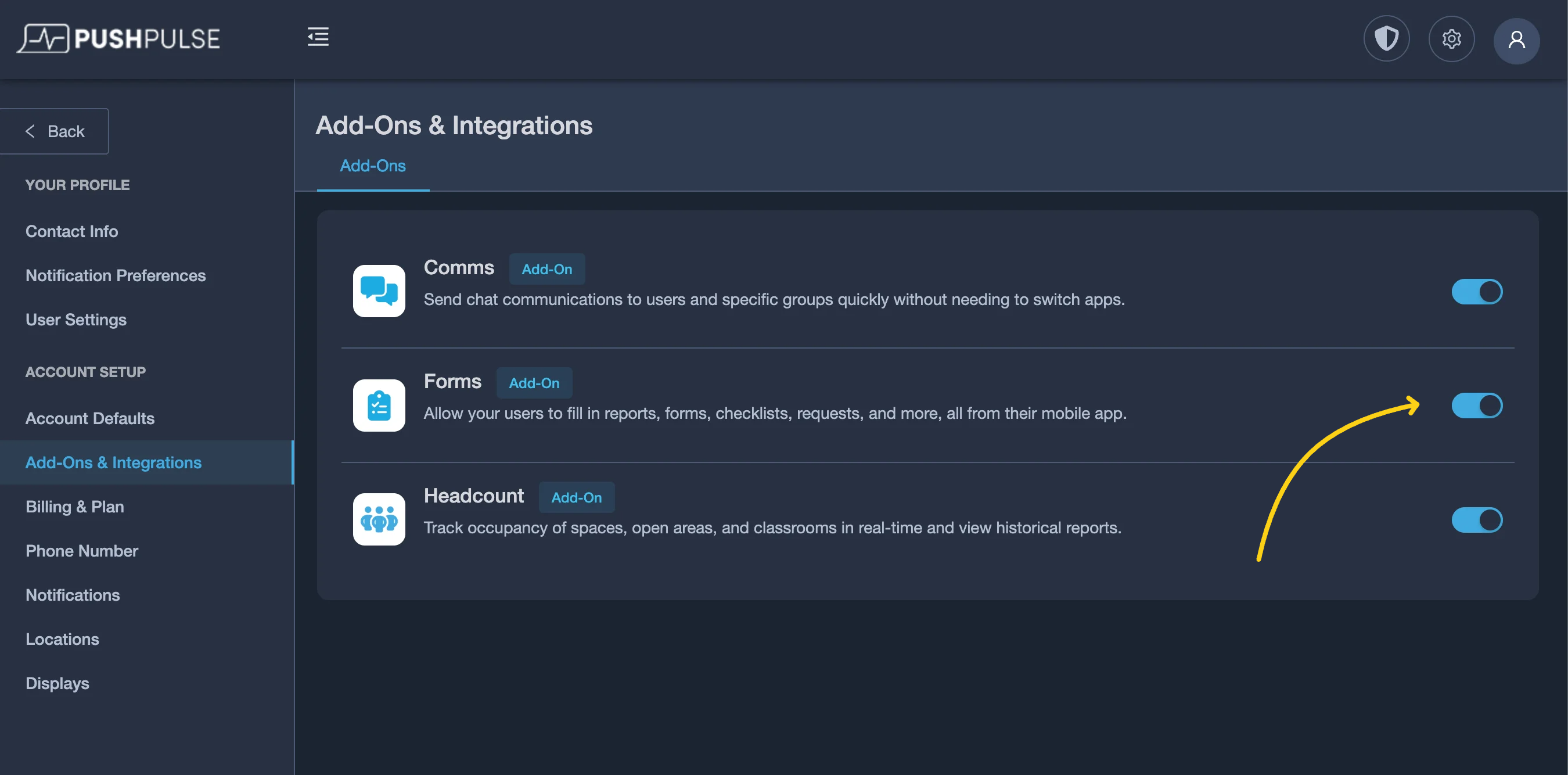
You can activate the forms module by clicking the gear in the upper right-hand corner of the screen. Then select **Add-Ons & Integrations**. If Forms is not activated, select the toggle to activate the module.
<figure><img src="https://1237304485-files.gitbook.io/~/files/v0/b/gitbook-x-prod.appspot.com/o/spaces%2FYEKqXMDhT5qkEe8tbUev%2Fuploads%2FODXKdLhqBLUVtjKDkUSp%2FFormsStep1-mh.png?alt=media&amp;token=57507f64-eb34-4a6e-85a4-04806ff56eea" alt=""><figcaption></figcaption></figure>

### How to Create a New Form <a href="#h_8f561efb92" id="h_8f561efb92"></a>

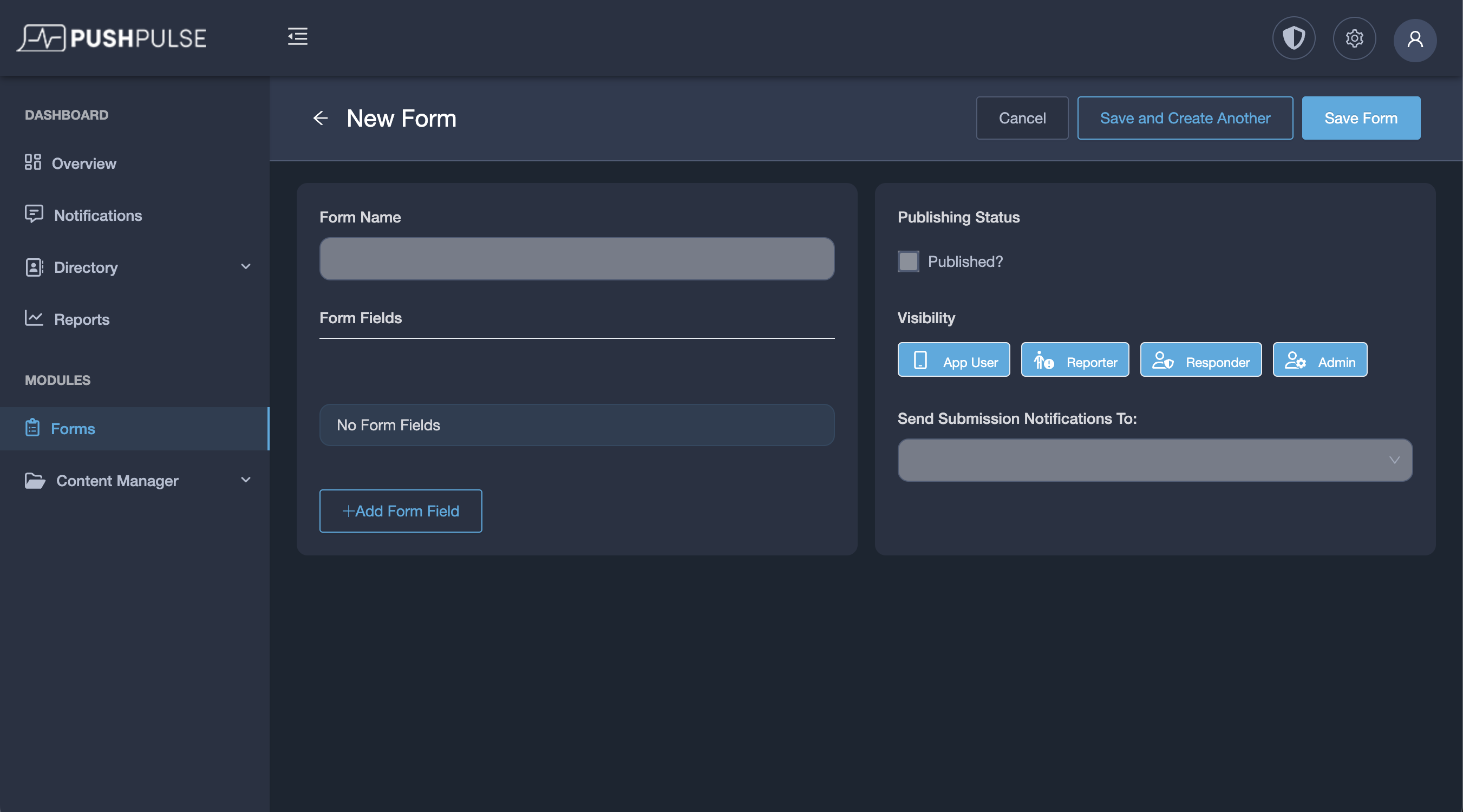
To Create a new form, select **Forms** from the modules list and then select **+ Add Form**.&#x20;

<figure><img src="https://1237304485-files.gitbook.io/~/files/v0/b/gitbook-x-prod.appspot.com/o/spaces%2FYEKqXMDhT5qkEe8tbUev%2Fuploads%2F3GtR1P5KJhryTk2SxDVt%2FFormStep2-mh.png?alt=media&amp;token=890582ad-4836-4e81-9201-4a6dd7c1982d" alt=""><figcaption></figcaption></figure>

Complete the required fields

Form Name: Name of the form

<figure><img src="https://1237304485-files.gitbook.io/~/files/v0/b/gitbook-x-prod.appspot.com/o/spaces%2FYEKqXMDhT5qkEe8tbUev%2Fuploads%2F2OL1eM1kyzcAhZC7QHHr%2FFormStep3.png?alt=media&amp;token=537825d6-e800-4f9a-a14f-f3868fd6f99b" alt=""><figcaption></figcaption></figure>

#### Adding Form Fields

Available Form Fields\
Header Text\
Single Line Text\
Multi-Line Text\
Number\
Multiple Choice\
Dropdown\
Date & Time\
Signature\
File

<figure><img src="https://1237304485-files.gitbook.io/~/files/v0/b/gitbook-x-prod.appspot.com/o/spaces%2FYEKqXMDhT5qkEe8tbUev%2Fuploads%2FMKYBxZl3iqzDWxPaRXfa%2FFormStep4.png?alt=media&amp;token=99d826b9-580e-4464-a9eb-6de97cf07381" alt=""><figcaption></figcaption></figure>

Form Fields have various configurations based on the field type.

Label: Name of the form field/question.\
Description: A hint or description of the question.\
Required: Set whether or not an answer is required to submit the form.\
Remove the Field: Remove the question from the list

<figure><img src="https://1237304485-files.gitbook.io/~/files/v0/b/gitbook-x-prod.appspot.com/o/spaces%2FYEKqXMDhT5qkEe8tbUev%2Fuploads%2FgvQk94uH4n6uo9sdkNtj%2FScreenshot%202025-01-14%20at%2011.20.39%E2%80%AFPM.png?alt=media&amp;token=e7e4f254-8857-44a5-ac61-91b7318e87ab" alt=""><figcaption></figcaption></figure>

Form Fields can be dragged and dropped to be re-arranged.

<figure><img src="https://1237304485-files.gitbook.io/~/files/v0/b/gitbook-x-prod.appspot.com/o/spaces%2FYEKqXMDhT5qkEe8tbUev%2Fuploads%2FIJXeLmRojAWzA4NDbLjx%2FScreenshot%202025-01-14%20at%2011.19.27%E2%80%AFPM.png?alt=media&amp;token=17fafd93-bb04-43a4-b2be-c1090fbbbd0f" alt=""><figcaption></figcaption></figure>

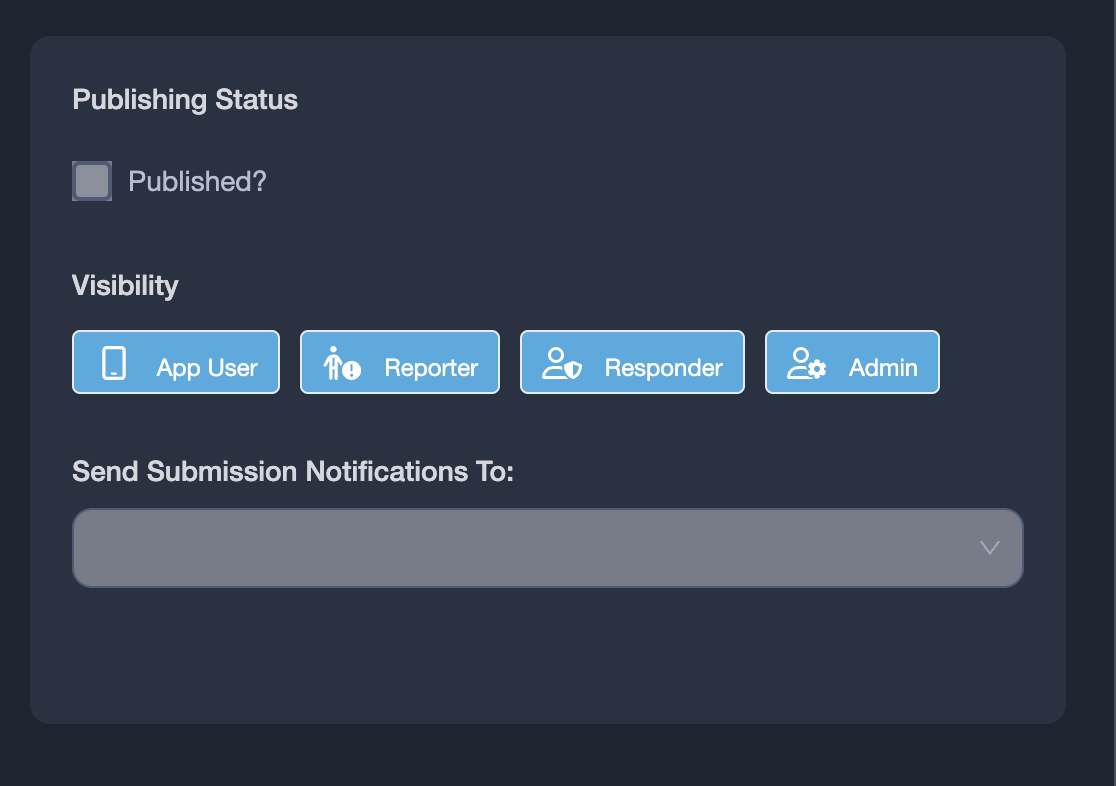
#### Publishing Settings

Publishing Status: The form will not be visible unless published.\
Visibility: Select the user roles that can see and complete the form.\
Notifications: Select any admins that should receive a notification when a form is submitted.

<figure><img src="https://1237304485-files.gitbook.io/~/files/v0/b/gitbook-x-prod.appspot.com/o/spaces%2FYEKqXMDhT5qkEe8tbUev%2Fuploads%2FTtxrcxFrgJx0OyNooGXp%2FFormStep5.png?alt=media&amp;token=783f59a5-7763-472e-ac5f-d230e69a0ede" alt=""><figcaption></figcaption></figure>

### Forms Dashboard <a href="#h_8f561efb92" id="h_8f561efb92"></a>

The forms dashboard provides details, a history of form submissions, and the ability to take certain actions on the form.

<figure><img src="https://1237304485-files.gitbook.io/~/files/v0/b/gitbook-x-prod.appspot.com/o/spaces%2FYEKqXMDhT5qkEe8tbUev%2Fuploads%2Fhee2MI6dLjcpftky18Nf%2FScreenshot%202025-01-14%20at%207.59.49%E2%80%AFPM.png?alt=media&amp;token=177503ad-7750-4a9e-bc70-1d23172f0a42" alt=""><figcaption></figcaption></figure>

Form Actions

A user can edit a form, create a new submission, as well as clone, archive, or delete the form.

<figure><img src="https://1237304485-files.gitbook.io/~/files/v0/b/gitbook-x-prod.appspot.com/o/spaces%2FYEKqXMDhT5qkEe8tbUev%2Fuploads%2FvR6Fpt6QIG0jKw9vOb2u%2FScreenshot%202025-01-14%20at%2011.05.10%E2%80%AFPM.png?alt=media&amp;token=1503b4d1-69ec-46c4-9d88-f0f96c22950b" alt=""><figcaption></figcaption></figure>

#### View Responses

The submissions tab shows all submissions of a given form, including the user who submitted it, how they submitted it (mobile app vs web app), and when they submitted it.&#x20;

<figure><img src="https://1237304485-files.gitbook.io/~/files/v0/b/gitbook-x-prod.appspot.com/o/spaces%2FYEKqXMDhT5qkEe8tbUev%2Fuploads%2F2U8fQkOBD89A5vxWVfMX%2FScreenshot%202025-01-14%20at%2011.00.27%E2%80%AFPM.png?alt=media&amp;token=bf519fac-15fb-4638-9ae8-1e263d0f30d6" alt=""><figcaption></figcaption></figure>

Users can also select an individual submission to see all the details and answers.

<figure><img src="https://1237304485-files.gitbook.io/~/files/v0/b/gitbook-x-prod.appspot.com/o/spaces%2FYEKqXMDhT5qkEe8tbUev%2Fuploads%2Fxf9cOln4a57ClLdl5vcp%2FScreenshot%202025-01-14%20at%208.00.57%E2%80%AFPM.png?alt=media&amp;token=8cfd83e5-ba69-4636-943f-b592af07a44a" alt=""><figcaption></figcaption></figure>

#### New Submission

To create a new form submission from the web application, select **Actions** and then **New Submission**.

<figure><img src="https://1237304485-files.gitbook.io/~/files/v0/b/gitbook-x-prod.appspot.com/o/spaces%2FYEKqXMDhT5qkEe8tbUev%2Fuploads%2F08j0Fjd2oawvcu3Hm5T4%2FScreenshot%202025-01-14%20at%2011.01.45%E2%80%AFPM.png?alt=media&amp;token=d64bb3a4-0898-4cb2-a62e-87a78ada2edb" alt=""><figcaption></figcaption></figure>

Complete the required fields and select **Submit Form**.

<figure><img src="https://1237304485-files.gitbook.io/~/files/v0/b/gitbook-x-prod.appspot.com/o/spaces%2FYEKqXMDhT5qkEe8tbUev%2Fuploads%2FIrHxo81vDrlQMsBlg4Fi%2FScreenshot%202025-01-14%20at%2011.01.32%E2%80%AFPM.png?alt=media&amp;token=ba46e4d5-23d0-449c-8569-448002fe9078" alt=""><figcaption></figcaption></figure>

#### Export Submissions (CSV or PDF)

An admin can either export all submissions in CSV or PDF format or only export a single submission. To export all submissions select the **Submissions** tab and the **Export** button followed by the desired output format.&#x20;

<figure><img src="https://1237304485-files.gitbook.io/~/files/v0/b/gitbook-x-prod.appspot.com/o/spaces%2FYEKqXMDhT5qkEe8tbUev%2Fuploads%2Fx1gs0pL9Wldm4NnaQKDw%2FScreenshot%202025-01-14%20at%208.01.20%E2%80%AFPM.png?alt=media&amp;token=fe2a78f1-f24f-400f-acd2-d4fb12bb0bcd" alt=""><figcaption></figcaption></figure>

To export a specific submission, select the submission and then the **Export** button and then the desired output format.

<figure><img src="https://1237304485-files.gitbook.io/~/files/v0/b/gitbook-x-prod.appspot.com/o/spaces%2FYEKqXMDhT5qkEe8tbUev%2Fuploads%2FaKN4pIUV0E77IUGU1RcH%2FScreenshot%202025-01-14%20at%2011.04.11%E2%80%AFPM.png?alt=media&amp;token=cac96244-3e40-4177-96d3-da732b154dfb" alt=""><figcaption></figcaption></figure>

### How to Edit a Form <a href="#h_8f561efb92" id="h_8f561efb92"></a>

Select **Edit** from the **Actions** menu and edit the form as necessary.

{% hint style="warning" %}
Warning: you might lose response data forever.

* &#x20;Delete a choice\
  You'll lose response data linked to that choice.
* &#x20;Add or reorder choices\
  Your response data for this field will be inaccurate.
* &#x20;Edit text\
  Fixing a typo? It won't affect your response data.
  {% endhint %}

<figure><img src="https://1237304485-files.gitbook.io/~/files/v0/b/gitbook-x-prod.appspot.com/o/spaces%2FYEKqXMDhT5qkEe8tbUev%2Fuploads%2FlsSxKZiDMJ6GzELx5Op3%2FScreenshot%202025-01-14%20at%208.01.50%E2%80%AFPM.png?alt=media&amp;token=e871a98d-7ef2-4bdb-9b65-ca45ef040592" alt=""><figcaption></figcaption></figure>

### How to Use Forms in the Mobile App <a href="#h_8f561efb92" id="h_8f561efb92"></a>

#### Complete Forms in Mobile App

To complete forms in the PushPulse mobile app, select **Modules,** then **Forms,** the desired form, and then complete the required fields.

<div><figure><img src="https://1237304485-files.gitbook.io/~/files/v0/b/gitbook-x-prod.appspot.com/o/spaces%2FYEKqXMDhT5qkEe8tbUev%2Fuploads%2F6L3Q3jAVTnXeUC86vZfT%2FSimulator%20Screenshot%20-%20iPhone%2015%20-%202025-01-14%20at%2022.48.10.png?alt=media&amp;token=71274825-7327-4e2e-b5df-696548023db5" alt=""><figcaption></figcaption></figure> <figure><img src="https://1237304485-files.gitbook.io/~/files/v0/b/gitbook-x-prod.appspot.com/o/spaces%2FYEKqXMDhT5qkEe8tbUev%2Fuploads%2FxRJSRBskXmcakbIUQTxh%2FSimulator%20Screenshot%20-%20iPhone%2015%20-%202025-01-14%20at%2022.48.21.png?alt=media&amp;token=ff13bff0-23c8-4374-a5aa-8af240d3e495" alt=""><figcaption></figcaption></figure> <figure><img src="https://1237304485-files.gitbook.io/~/files/v0/b/gitbook-x-prod.appspot.com/o/spaces%2FYEKqXMDhT5qkEe8tbUev%2Fuploads%2F8EJxg9tZCSiJZR9jWquc%2FSimulator%20Screenshot%20-%20iPhone%2015%20-%202025-01-14%20at%2022.48.43.png?alt=media&amp;token=770da61a-eb7c-484b-b845-5169a6eac996" alt=""><figcaption></figcaption></figure></div>

View Form Submissions

To view previous form submissions, select **Submissions** in the forms module and then select the desired submission to view.&#x20;

{% hint style="info" %}
Unless the user has admin privileges, users can only see forms they've submitted.
{% endhint %}

<div><figure><img src="https://1237304485-files.gitbook.io/~/files/v0/b/gitbook-x-prod.appspot.com/o/spaces%2FYEKqXMDhT5qkEe8tbUev%2Fuploads%2FfQfyipfJazqqmeeTKt9w%2FSimulator%20Screenshot%20-%20iPhone%2015%20-%202025-01-14%20at%2022.55.12.png?alt=media&amp;token=891233c7-7b0f-45aa-9a17-46580f94b053" alt=""><figcaption></figcaption></figure> <figure><img src="https://1237304485-files.gitbook.io/~/files/v0/b/gitbook-x-prod.appspot.com/o/spaces%2FYEKqXMDhT5qkEe8tbUev%2Fuploads%2F4jCaOO0dmryGuC17W6vh%2FSimulator%20Screenshot%20-%20iPhone%2015%20-%202025-01-14%20at%2022.49.47.png?alt=media&amp;token=5330925c-32fb-4e0c-bd26-489c838004d2" alt=""><figcaption></figcaption></figure></div>


# Files


# Documents


# Web Links


# Account Defaults

Account Defaults allow you to customize basic settings for your PushPulse account, including general information, branding, regional settings, and languages. In this guide, we'll walk you through each section step by step.

**Navigation:** To access Account Defaults, you have two options:

1. Click on the gear icon located in the top menu.
2. Click on your user icon in the top right corner of the interface and then select "Account Settings" from the drop-down menu.

<figure><img src="https://1237304485-files.gitbook.io/~/files/v0/b/gitbook-x-prod.appspot.com/o/spaces%2FYEKqXMDhT5qkEe8tbUev%2Fuploads%2FPr010kJRCfAawljxnlqV%2FScreenshot%202023-09-13%20at%209.04.49%20PM.png?alt=media&amp;token=0da02754-2a1b-43e0-8997-99bb5ec38221" alt=""><figcaption></figcaption></figure>

Within Account Defaults, you'll find four tabs, each with its own set of options:

[**General Settings**](/account-setup/account-defaults/general-settings)**:** In the "General" section, you can update your organization's name and address.

[**Branding**](/account-setup/account-defaults/branding)**:** The "Branding" section allows you to customize your account's appearance by uploading logos and defining brand colors.

[**Regional Settings**](/account-setup/account-defaults/regional-settings)**:** In "Regional Settings," you can configure language preferences, time zones, time formats, and date formats.

[**Languages**](/account-setup/account-defaults/languages)**:** If your account supports translated notifications, you can add additional languages in the "Languages" section.


# General Settings

In the General Settings section, you can update your organization's name and address.

**Navigation:** To access General Settings, you have two options:

1. Click on the gear icon located in the top menu.
2. Click on your user icon in the top right corner of the interface and then select "Account Settings" from the drop-down menu.

Within Account Defaults, select the General Settings Tab:

<figure><img src="https://1237304485-files.gitbook.io/~/files/v0/b/gitbook-x-prod.appspot.com/o/spaces%2FYEKqXMDhT5qkEe8tbUev%2Fuploads%2Fl7N9kVTUwdY6fqATzre7%2FScreenshot%202023-09-13%20at%209.06.36%20PM.png?alt=media&amp;token=f3562c05-2b6e-4e01-9e0a-f05d8fc651ff" alt=""><figcaption></figcaption></figure>


# Branding

In the Brandings Settings section, you can update your organization's name and address.

**Navigation:** To access Branding, you have two options:

1. Click on the gear icon located in the top menu.
2. Click on your user icon in the top right corner of the interface and then select "Account Settings" from the drop-down menu.

Within Account Defaults, select the Branding Tab:

<figure><img src="https://1237304485-files.gitbook.io/~/files/v0/b/gitbook-x-prod.appspot.com/o/spaces%2FYEKqXMDhT5qkEe8tbUev%2Fuploads%2Fj2vkU4OzbdZfISFxnx24%2FScreenshot%202023-09-13%20at%209.07.33%20PM.png?alt=media&amp;token=1d786784-6ac3-43ee-b352-1556f5ab9e7e" alt=""><figcaption></figcaption></figure>


# Regional Settings

In the Regional Settings section, you can update your organization's name and address.

**Navigation:** To access Regional Settings, you have two options:

1. Click on the gear icon located in the top menu.
2. Click on your user icon in the top right corner of the interface and then select "Account Settings" from the drop-down menu.

Within Account Defaults, select the Regional Settings Tab:

<figure><img src="https://1237304485-files.gitbook.io/~/files/v0/b/gitbook-x-prod.appspot.com/o/spaces%2FYEKqXMDhT5qkEe8tbUev%2Fuploads%2FxKdGwXiHGYDjajcnByrp%2FScreenshot%202023-09-13%20at%209.08.11%20PM.png?alt=media&amp;token=90768c9e-a6cf-438e-a261-af66724f49da" alt=""><figcaption></figcaption></figure>


# Languages

In the Languages section, you can update your organization's name and address.

**Navigation:** To access the Languages section, you have two options:

1. Click on the gear icon located in the top menu.
2. Click on your user icon in the top right corner of the interface and then select "Account Settings" from the drop-down menu.

Within Account Defaults, select the Languages Tab:

<figure><img src="https://1237304485-files.gitbook.io/~/files/v0/b/gitbook-x-prod.appspot.com/o/spaces%2FYEKqXMDhT5qkEe8tbUev%2Fuploads%2F30uQRwVW6ZBRtnDjjFL4%2FScreenshot%202023-09-13%20at%209.08.55%20PM.png?alt=media&amp;token=b51622d9-a246-4324-9724-a9b682a899cd" alt=""><figcaption></figcaption></figure>


# Billing and Plan


# Phone Number

{% hint style="info" %}
SMS messages and voice calls are only available for active subscriptions.
{% endhint %}

Instructions

## Submitting Regulatory Compliance Review

Instructions


# Locations


# Notifications


# Notification Types


# Notification Templates


# Displays


# Config


# Devices


# Slideshows


# Bulk User Import

## Overview

The Bulk User Import feature allows you to add, update, or delete multiple users at once by uploading a CSV or Excel file. This is perfect for onboarding new teams, updating user information in bulk, or managing your user base efficiently.

***

## Quick Start

* Navigate to the **Users** page
* Click the **Import** button in the top right
* Follow the 5-step import wizard:
  * Upload
  * Options
  * Map
  * Validate
  * Confirm

***

## File Requirements

### Supported File Formats

* CSV (`.csv`)
* Excel (`.xls`, `.xlsx`)

### File Limitations

* **Maximum file size:** 2MB
* **Maximum rows:** 1,000 rows of data (excluding header row)
* Empty rows are automatically skipped

### Download Example Template

Click **"Download Example File"** on the Upload step to get a template with the correct column headers.

***

## Step-by-Step Guide

{% stepper %}
{% step %}

### Step 1: Upload Your File

* Drag and drop your file into the upload area, or click to browse.
* The system will automatically validate:
  * File size (must be under 2MB)
  * Row count (must be 1,000 rows or fewer)
  * File format (CSV, XLS, or XLSX)
* You'll see a success message showing how many rows were detected.
* The uploaded file appears below the upload area with a remove option.

{% hint style="info" %}
Pro Tip: The system automatically skips completely empty rows, so you don't need to clean up your spreadsheet before uploading.
{% endhint %}
{% endstep %}

{% step %}

### Step 2: Choose Import Behavior

Select how you want the system to handle your imported data:

Update or Add New Users (Recommended)

* Adds new users from your file
* Updates information for existing users (matched by email)
* Existing users not in your file remain unchanged
* Use when: You want to safely add new users or update existing ones without affecting others

Replace All Users ⚠️

* Adds new users from your file
* Updates existing users (matched by email)
* Permanently removes any users not included in your file
* Use when: You want your file to be the single source of truth for all users
* Warning: This will delete users not in your file!

Delete Users 🚨

* Permanently removes users listed in your file (matched by email)
* All other users remain unchanged
* Use when: You need to remove specific users in bulk
* Warning: This action cannot be undone!

{% hint style="info" %}
Email Matching: All import behaviors use email addresses to match users. The system will display an info box reminding you to ensure email addresses are accurate and properly formatted.
{% endhint %}
{% endstep %}

{% step %}

### Step 3: Map Your Columns

Match the columns from your file to the user fields in the system.

For Update/Replace Imports

Required Fields (marked with \*):

* First Name \*
* Last Name \*
* Email \*

Optional Fields:

* Phone
* Role
* Primary Location

Default Values Column:

* For Role and Primary Location, you can set default values.
* Defaults are used when your file doesn't include data for these fields.
* Select from the dropdown in the "Default Value" column.

For Delete Imports

* Only Email is required. This is the field used to identify which users to delete.

Smart Features

* Auto-Mapping: The system automatically tries to match your column headers to the correct fields. For example: "First Name" → First Name, "Email" → Email, "Location" → Primary Location
* Unique Column Selection: Each column from your file can only be mapped once. If you select a column that's already mapped to another field, the previous mapping will automatically clear.
  {% endstep %}

{% step %}

### Step 4: Validate Your Data

The system automatically scans your data for issues and displays:

Summary Metrics

* ✅ Valid Rows: Rows with no issues
* ❌ Errors: Critical issues that must be fixed
* ⚠️ Warnings: Non-critical issues (defaults will be applied)

Validation Rules

Errors (Must be Fixed or Skipped)

* Empty required fields (First Name, Last Name, Email)
* Invalid email format (e.g., missing @, no domain)

Warnings (Won't Block Import)

* Invalid phone number format (will be saved as empty)
* Unknown role (will use default role)
* Location not found in system (will use default location)

Issues Table

* View detailed issues in a table format showing:
  * Row #: The row number in your file
  * Type: Error or Warning
  * Field: Which field has the issue
  * Issue: Description of the problem
  * Value: The problematic value from your file

Two Ways to Proceed

Option 1: Fix All Errors

* Download your file
* Correct the errors
* Re-upload
* The "Next" button will be enabled once all errors are fixed

Option 2: Skip Error Rows

* Click "Skip X Error Rows & Continue"
* Only valid rows will be imported
* Rows with errors will be completely skipped
* You'll see a warning on the next step confirming how many rows will be skipped

Important: Warnings don't block import. The system will automatically apply default values where needed.
{% endstep %}

{% step %}

### Step 5: Confirm and Import

Review Your Import

Preview Table:

* Shows the first 5 rows of data
* Displays how the data will be imported after mapping and defaults are applied
* For delete imports: only shows email addresses

Import Options (Update/Replace only)

* Send Invite Now
  * Toggle on/off
  * When enabled: Users receive an email invitation to set their password
  * When disabled: Users are created but no invitation is sent
* Add Users to Groups (Optional)
  * Select one or more groups
  * All imported users will be automatically added to the selected groups
  * Shows current member count for each group

Final Confirmation

* Check the box: "I confirm the data is accurate and authorized for import"
* This ensures you've reviewed the data and have authorization to import these users.
  {% endstep %}
  {% endstepper %}

***

## Results Screen

After import completes, you'll see:

### Summary Cards

* ✅ Successfully Imported: Count of users added/updated/deleted
* ❌ Failed: Count of users that couldn't be processed

### Detailed Results

* A list showing each user with:
  * ✅ Green checkmark for success
  * ❌ Red X for failure
  * Name and row number
  * Error message (if failed)

Click "Done" to close the modal and refresh the user list.

***

## Best Practices

### Preparing Your File

1. Use the template: Download the example file and use it as a starting point
2. Clean your data: Remove completely empty rows (though the system will skip them)
3. Verify emails: Double-check all email addresses are valid and formatted correctly
4. Standardize formats: Use consistent formatting for phone numbers
5. Check locations: Ensure location names match exactly with locations in your system
6. Validate roles: Use only valid role values: `user`, `reporter`, `responder`, `location-admin`, `admin`

### Import Behavior Selection

* Regular updates? Use "Update or Add New Users"
* Complete refresh? Use "Replace All Users" (but be careful!)
* Removing users? Use "Delete Users" (cannot be undone)

### Field Mapping Tips

* The system auto-maps common column names, but always verify the mappings
* Use the preview column to confirm data is mapping correctly
* Set appropriate defaults for Role and Location before proceeding

### Handling Validation Issues

For Small Numbers of Errors (1-5 rows):

* Fix the errors in your file and re-upload
* Ensures complete data integrity

For Large Numbers of Errors (many rows):

* Use "Skip Error Rows & Continue" to import valid data immediately
* Fix error rows separately through the UI later
* More efficient for large imports

### Phone Number Formats

The system accepts various phone formats and will attempt to standardize them:

* `555-0100`
* `(555) 010-0101`
* `+1 555 010 0102`
* `5550100103`

Invalid formats will result in warnings and the phone field will be left empty.

***

## Common Issues and Solutions

### "File size exceeds 2MB limit"

Solution: Split your file into smaller batches or remove unnecessary columns.

### "File contains more than 1,000 rows"

Solution: Split your import into multiple files of 1,000 rows or fewer.

### "Please map all required fields"

Solution: Ensure First Name, Last Name, and Email are all mapped to columns from your file.

### "Invalid email format" errors

Solution:

* Check for typos in email addresses (missing @, wrong domain, etc.)
* Ensure no extra spaces before or after email addresses
* Use "Skip Error Rows" if only a few emails are invalid

### "Location not found" warnings

Solution:

* Verify location names match exactly (case-insensitive)
* Let the system use the default location you selected
* Or update location names in your file to match existing locations

### "Role not valid" warnings

Solution: Valid roles are: `user`, `reporter`, `responder`, `location-admin`, `admin`

* Fix role values in your file, or
* Let the system use your default role

***

## Advanced Tips

### Matching Users

* Users are matched by email address only
* Email matching is case-insensitive
* Make sure emails are unique in your file (duplicates may cause issues)

### Empty Values vs. Default Values

* If a cell is empty in your file, the default value is used
* If a cell has an invalid value, the default is also used (with a warning)
* To explicitly clear a value, you may need to update the user individually after import

### Location Matching

The system matches locations by:

1. Location name (case-insensitive)
2. Location ID (if you include it)

### Partial Imports

If you're importing 100 users and 5 have errors:

* Using "Skip Error Rows": 95 users import immediately
* The 5 error rows can be fixed and imported in a second batch
* More efficient than fixing everything upfront for large files

***

## Frequently Asked Questions

<details>

<summary>Q: Can I import the same user twice?</summary>

A: No. Users are matched by email. The second occurrence will update the first based on your import behavior.

</details>

<details>

<summary>Q: What happens if I import without sending invites?</summary>

A: Users are created in the system but won't receive login credentials. You'll need to send invites manually later.

</details>

<details>

<summary>Q: Can I undo an import?</summary>

A: No. Imports are permanent. Always review your data carefully before confirming.

</details>

<details>

<summary>Q: How do I update just one field for all users?</summary>

A: Include only the Email column (to match users) and the column you want to update. Leave other mappings empty.

</details>

<details>

<summary>Q: Can I import users to specific locations?</summary>

A: Yes! Include a Location column in your file and map it to "Primary Location" during the Map step.

</details>

<details>

<summary>Q: What if my file has extra columns I don't need?</summary>

A: No problem! Only map the columns you need. Extra columns are ignored.

</details>

<details>

<summary>Q: Can I use this to bulk-delete users?</summary>

A: Yes. Choose "Delete Users" behavior and upload a file with just email addresses.

</details>


# Manage Users

## Add Users

Instructions

## Update Users

Instructions

## Delete Users

Instructions

tips

check spam folder

how to add to safe list (gmail, outlook, spectrum, at\&t

resend invite if can't find it


# User Roles

## App User

Role Description

## Reporter

Role Description

## Responder

Role Description

## Admin

Role Description

<table><thead><tr><th width="256">Action</th><th width="111">App User</th><th width="108">Reporter</th><th width="122">Responder</th><th>Admin</th></tr></thead><tbody><tr><td>Can Login to PushPulse Web App</td><td><a href="https://emojipedia.org/prohibited">🚫</a></td><td><a href="https://emojipedia.org/prohibited">🚫</a></td><td><a href="https://emojipedia.org/prohibited">🚫</a></td><td><a href="https://emojipedia.org/check-mark-button">✅</a></td></tr><tr><td>Can Login to PushPulse Mobile App</td><td><a href="https://emojipedia.org/check-mark-button">✅</a></td><td><a href="https://emojipedia.org/check-mark-button">✅</a></td><td><a href="https://emojipedia.org/check-mark-button">✅</a></td><td><a href="https://emojipedia.org/check-mark-button">✅</a></td></tr><tr><td>Can Receive Notifications</td><td><a href="https://emojipedia.org/check-mark-button">✅</a></td><td><a href="https://emojipedia.org/check-mark-button">✅</a></td><td><a href="https://emojipedia.org/check-mark-button">✅</a></td><td><a href="https://emojipedia.org/check-mark-button">✅</a></td></tr><tr><td>Can Send Notifications</td><td><a href="https://emojipedia.org/prohibited">🚫</a></td><td><a href="https://emojipedia.org/check-mark-button">✅</a></td><td><a href="https://emojipedia.org/check-mark-button">✅</a></td><td><a href="https://emojipedia.org/check-mark-button">✅</a></td></tr><tr><td>Can Add Notes to Notifications</td><td><a href="https://emojipedia.org/prohibited">🚫</a></td><td><a href="https://emojipedia.org/prohibited">🚫</a></td><td><a href="https://emojipedia.org/check-mark-button">✅</a></td><td><a href="https://emojipedia.org/check-mark-button">✅</a></td></tr><tr><td>Can Clear Notifications</td><td><a href="https://emojipedia.org/prohibited">🚫</a></td><td><a href="https://emojipedia.org/prohibited">🚫</a></td><td><a href="https://emojipedia.org/check-mark-button">✅</a></td><td><a href="https://emojipedia.org/check-mark-button">✅</a></td></tr></tbody></table>


# User Profile


# Groups


# Notifications


# Message


# Translations

PushPulse supports translation between the following 75 languages: Afrikaans, Albanian, Amharic, Arabic, Armenian, Azerbaijani, Bengali, Bosnian, Bulgarian, Chinese (Simplified), Catalan, Chinese (Traditional), Croatian, Czech, Danish, Dari, Dutch, English, Estonian, Finnish, French, French (Canada), Georgian, German, Greek, Gujarati, Haitian Creole, Hausa, Hebrew, Hindi, Hungarian, Icelandic, Indonesian, Irish, Italian, Japanese, Kannada, Kazakh, Korean, Latvian, Lithuanian, Macedonian, Malay, Malayalam, Maltese, Mongolian, Marathi, Norwegian, Farsi (Persian), Pashto, Polish, Portuguese, Portuguese (Portugal), Punjabi, Romanian, Russian, Serbian, Sinhala, Slovak, Slovenian, Somali, Spanish, Spanish (Mexico), Swahili, Swedish, Filipino Tagalog, Tamil, Telugu, Thai, Turkish, Ukrainian, Urdu, Uzbek, Vietnamese, and Welsh.


# Request Confirmation


# Request Responders


# Publishing Options


# Recipients


# Notification Dashboard


# Slack Integration

Connect PushPulse to Slack to deliver alerts, status updates, and form submission notifications directly to your team's channels.

### How It Works

When an alert is triggered in PushPulse, a message is posted to any Slack channels you've configured for delivery. As the incident evolves, status updates, notes, and all clears are automatically threaded under the original alert message — keeping communication organized and easy to follow.

Form submissions can also be configured to notify Slack channels, giving your team real-time visibility into incoming reports.

***

### Setup Overview

Getting Slack connected involves three steps:

1. **Authorize the PushPulse Slack app** — connect your Slack workspace via OAuth
2. **Add PushPulse to your channels** — grant the app access to the channels you want to use
3. **Configure delivery** — attach channels to alert templates, individual alerts, or forms

***

### Step 1: Authorize the Slack App

Navigate to **Integrations → Slack** in PushPulse and click **Connect**. You'll be redirected to Slack to authorize the PushPulse app for your workspace. You must be a Slack workspace admin, or have permission to authorize third-party apps, to complete this step.

Once authorized, you'll be returned to PushPulse and the integration will show as connected.

<div><figure><img src="https://1237304485-files.gitbook.io/~/files/v0/b/gitbook-x-prod.appspot.com/o/spaces%2FYEKqXMDhT5qkEe8tbUev%2Fuploads%2FQIIBA8vNlvyqIwtkp46c%2FScreenshot%202026-05-27%20at%2012.33.39%E2%80%AFPM.png?alt=media&amp;token=0d18fe4c-505b-4d1b-92c2-ac54197dbc1f" alt=""><figcaption></figcaption></figure> <figure><img src="https://1237304485-files.gitbook.io/~/files/v0/b/gitbook-x-prod.appspot.com/o/spaces%2FYEKqXMDhT5qkEe8tbUev%2Fuploads%2FaG3RSDemQydeMapB5Lbk%2FScreenshot%202026-05-27%20at%2012.34.07%E2%80%AFPM.png?alt=media&amp;token=03cc1c79-a448-431f-a6d2-90c10d37886a" alt=""><figcaption></figcaption></figure></div>

***

### Step 2: Add PushPulse to Your Channels

PushPulse can only deliver to channels where the app has been added. This applies to both public and private channels.

**To add PushPulse to a channel:**

1. Open the channel in Slack
2. Run `/invite @PushPulse` in the message field, or go to **Channel details → Integrations → Add an app**
3. Select **PushPulse** from the app list

> **Private channels:** You must invite PushPulse directly. Depending on your workspace settings, a Slack admin may need to approve the invite.

After adding the app to a channel, return to **Integrations → Slack** in PushPulse and click **Refresh Channels**. Confirm the channel appears and shows as ready for delivery before configuring it.

***

### Step 3: Configure Delivery

#### Notification Templates

To deliver alerts to Slack at the template level — so every alert created from that template notifies the same channel(s) automatically:

1. Go to **Alert Templates** and open or create a template
2. In the **Delivery** section, select one or more Slack channels
3. Save the template

Alerts created from this template will automatically notify the selected channels when triggered.

#### Individual Notifications

You can also select Slack channels when composing a new alert:

1. Start composing an alert
2. In the **Delivery** section, select one or more Slack channels
3. Send the alert

This is useful for one-off alerts where broader or different notification is needed beyond a template's default configuration.

<figure><img src="https://1237304485-files.gitbook.io/~/files/v0/b/gitbook-x-prod.appspot.com/o/spaces%2FYEKqXMDhT5qkEe8tbUev%2Fuploads%2FavuWvXMYtMvwZLjmc9KH%2FScreenshot%202026-05-27%20at%2012.38.12%E2%80%AFPM.png?alt=media&amp;token=655d4620-14df-4228-b379-029633d8b88a" alt=""><figcaption></figcaption></figure>

#### Forms

To send a Slack notification when a form is submitted:

1. Go to **Forms** and open or create a form
2. In the form settings, locate the **Send submission notification** section
3. Select one or more Slack channels to notify on submission
4. Save the form

The notification will be sent to the configured channel(s) each time the form is submitted.

<figure><img src="https://1237304485-files.gitbook.io/~/files/v0/b/gitbook-x-prod.appspot.com/o/spaces%2FYEKqXMDhT5qkEe8tbUev%2Fuploads%2Fa3WtV3sdpIQGzCR8Y9LK%2FScreenshot%202026-05-27%20at%2012.39.48%E2%80%AFPM.png?alt=media&amp;token=34c66166-707a-4dd0-91a7-8daa05cde4e2" alt=""><figcaption></figcaption></figure>

***

### What Gets Sent to Slack

| Event            | Behavior                                        |
| ---------------- | ----------------------------------------------- |
| Alert triggered  | New message posted to configured channel(s)     |
| Status update    | Threaded reply under the original alert message |
| Note added       | Threaded reply under the original alert message |
| All clear issued | Threaded reply under the original alert message |
| Form submitted   | New message posted to configured channel(s)     |

<figure><img src="https://1237304485-files.gitbook.io/~/files/v0/b/gitbook-x-prod.appspot.com/o/spaces%2FYEKqXMDhT5qkEe8tbUev%2Fuploads%2FmO8ijaLYtS2IA0tCVrRl%2FScreenshot%202026-05-27%20at%2012.41.56%E2%80%AFPM.png?alt=media&amp;token=77824ca5-f5af-43c9-82cd-b87d591239c8" alt=""><figcaption></figcaption></figure>

<figure><img src="https://1237304485-files.gitbook.io/~/files/v0/b/gitbook-x-prod.appspot.com/o/spaces%2FYEKqXMDhT5qkEe8tbUev%2Fuploads%2F3cAxFI1FbNhYNpqmpDdI%2FScreenshot%202026-05-27%20at%2012.40.32%E2%80%AFPM.png?alt=media&amp;token=653f1ae3-d413-430f-bbfa-7b7df9ca90ad" alt=""><figcaption></figcaption></figure>

***

### Troubleshooting

**A channel isn't showing up after I added the app.** Click **Refresh Channels** on the Slack integration page in PushPulse. If the channel still doesn't appear, confirm the PushPulse app was successfully added in Slack and try again.

**I can't invite PushPulse to a private channel.** Your Slack workspace may restrict third-party app access to private channels. Contact your Slack workspace admin to approve the invite or adjust permissions.

**Alerts aren't being delivered to Slack.** Verify that (1) the Slack integration is connected, (2) PushPulse has been added to the target channel, and (3) the channel is selected in the alert template, individual alert, or form configuration.

**The PushPulse app was removed from a channel.** Re-add the app using `/invite @PushPulse` in the channel, refresh channels in PushPulse, and confirm the channel shows as ready.


# Microsoft Teams Integration

Connect PushPulse to Microsoft Teams to deliver alerts, status updates, and form submission notifications directly to your team's channels.

### How It Works

When an alert is triggered in PushPulse, a message is posted to any Teams channels you've configured for delivery. As the incident evolves, status updates, notes, and all clears are automatically threaded under the original alert message — keeping communication organized and easy to follow.

Form submissions can also be configured to notify Teams channels, giving your team real-time visibility into incoming reports.

***

### Setup Overview

Getting Teams connected involves two steps:

1. **Authorize the PushPulse app** — connect your Microsoft Teams organization via OAuth
2. **Install the PushPulse bot in Teams** — an admin installs the app package and adds it to your desired teams
3. **Configure delivery** — attach channels to alert templates, individual alerts, or forms

***

### Step 1: Authorize the Teams App

In PushPulse, navigate to **Manage → Integrations → Microsoft Teams** and click **Connect**. You'll be prompted to sign in with your Microsoft account and grant PushPulse permission to connect to your organization.

You must have sufficient Microsoft 365 permissions to authorize third-party app integrations, or work with an admin who does.

<div><figure><img src="https://1237304485-files.gitbook.io/~/files/v0/b/gitbook-x-prod.appspot.com/o/spaces%2FYEKqXMDhT5qkEe8tbUev%2Fuploads%2FkzgQvvwgfLYAPI3PpajF%2FScreenshot%202026-05-27%20at%2012.50.08%E2%80%AFPM.png?alt=media&amp;token=e07e16a7-5c21-4400-9ad6-eca2da8f5409" alt=""><figcaption></figcaption></figure> <figure><img src="https://1237304485-files.gitbook.io/~/files/v0/b/gitbook-x-prod.appspot.com/o/spaces%2FYEKqXMDhT5qkEe8tbUev%2Fuploads%2FSAPgi5lkNWrMjlXbTbnd%2FScreenshot%202026-05-27%20at%207.30.01%E2%80%AFAM.png?alt=media&amp;token=466e791a-ac8d-43d3-b184-7b05e4724a3e" alt=""><figcaption></figcaption></figure></div>

***

### Step 2: Install the PushPulse Bot in Teams

This step requires a **Microsoft Teams admin**. The PushPulse bot must be uploaded to your organization's app catalog before it can be added to any team or channel.

1. Open **Microsoft Teams** and go to **Apps**
2. Click **Manage your apps**
3. Click **Upload an app**
4. Select **Upload an app to your org's app catalog**
5. Upload the PushPulse app package provided by your PushPulse administrator
6. Once uploaded, add **PushPulse** to your desired teams

> **Note:** Uploading to the org's app catalog makes the bot available across your organization. Individual team owners can then add it to their teams, or an admin can deploy it broadly.

After installation, you can send a **test message** from the integration page in PushPulse to confirm delivery is working before configuring live alerts.

***

### Step 3: Configure Delivery

#### Notification Templates

To deliver alerts to Teams at the template level — so every alert created from that template notifies the same channel(s) automatically:

1. Go to **Alert Templates** and open or create a template
2. In the **Delivery** section, select one or more Teams channels
3. Save the template

Alerts created from this template will automatically notify the selected channels when triggered.

#### Individual Notifications

You can also select Teams channels when composing a new alert:

1. Start composing an alert
2. In the **Delivery** section, select one or more Teams channels
3. Send the alert

This is useful for one-off alerts where broader or different notification is needed beyond a template's default configuration.

<figure><img src="https://1237304485-files.gitbook.io/~/files/v0/b/gitbook-x-prod.appspot.com/o/spaces%2FYEKqXMDhT5qkEe8tbUev%2Fuploads%2F1erx67K1V4xLzr9QPT3W%2FScreenshot%202026-05-27%20at%2012.52.00%E2%80%AFPM.png?alt=media&amp;token=27e0da36-9f15-4914-916a-005403bb884b" alt=""><figcaption></figcaption></figure>

#### Forms

To send a Teams notification when a form is submitted:

1. Go to **Forms** and open or create a form
2. In the form settings, locate the **Send submission notification** section
3. Select one or more Teams channels to notify on submission
4. Save the form

The notification will be sent to the configured channel(s) each time the form is submitted.

<figure><img src="https://1237304485-files.gitbook.io/~/files/v0/b/gitbook-x-prod.appspot.com/o/spaces%2FYEKqXMDhT5qkEe8tbUev%2Fuploads%2FK1SPAPod8Dg77W98R7DC%2FScreenshot%202026-05-27%20at%2012.53.39%E2%80%AFPM.png?alt=media&amp;token=0b33130a-6dcd-4eb8-b656-599621e4d2e5" alt=""><figcaption></figcaption></figure>

***

### What Gets Sent to Teams

| Event            | Behavior                                        |
| ---------------- | ----------------------------------------------- |
| Alert triggered  | New message posted to configured channel(s)     |
| Status update    | Threaded reply under the original alert message |
| Note added       | Threaded reply under the original alert message |
| All clear issued | Threaded reply under the original alert message |
| Form submitted   | New message posted to configured channel(s)     |

<figure><img src="https://1237304485-files.gitbook.io/~/files/v0/b/gitbook-x-prod.appspot.com/o/spaces%2FYEKqXMDhT5qkEe8tbUev%2Fuploads%2FggtdAdMIIUCpaelf41nb%2FScreenshot%202026-05-27%20at%2012.08.52%E2%80%AFPM.png?alt=media&amp;token=3ecd89e0-ca8b-4300-8b33-10f03a946194" alt=""><figcaption></figcaption></figure>

<figure><img src="https://1237304485-files.gitbook.io/~/files/v0/b/gitbook-x-prod.appspot.com/o/spaces%2FYEKqXMDhT5qkEe8tbUev%2Fuploads%2Fhyo7OBsrV49V4k3S2EkK%2FScreenshot%202026-05-27%20at%2012.09.06%E2%80%AFPM.png?alt=media&amp;token=eae4ebc2-dc8b-4466-b035-8b2ddfa6c59b" alt=""><figcaption></figcaption></figure>

***

### Troubleshooting

**I don't see any channels available to select.** Confirm the PushPulse bot has been installed and added to your teams by a Microsoft Teams admin. Channels only become available for delivery after the bot is present in the team.

**The app upload option isn't available.** Your Microsoft Teams organization may restrict custom app uploads. A Teams admin will need to enable this in the Teams admin center under **Teams apps → Setup policies**, or perform the upload on your behalf.

**Test message didn't arrive.** Verify that the PushPulse bot was successfully added to the target team, not just uploaded to the catalog. Open the team in Teams and confirm PushPulse appears under **Apps** for that team.

**Alerts aren't being delivered to Teams.** Verify that (1) the Teams integration is authorized in PushPulse, (2) the PushPulse bot is installed in the target team, and (3) the channel is selected in the alert template, individual alert, or form configuration.


# Planning Center Integration

Connect PushPulse with Planning Center Online (PCO) to keep your people directory in sync and target alerts to whoever is actually serving today.

### What You Get

**People sync.** Select Planning Center lists and PushPulse will automatically create and update users from them on a schedule. No CSVs, no manual cleanup.

**Serving-aware alerting.** When sending a notification, you can choose to deliver it only to people who are on a service plan that day — so the safety team gets the alert during the service, not on their day off.

The integration uses OAuth, so there are no API keys to manage. Sign in with Planning Center and you're connected.

***

### Setup Overview

Getting Planning Center connected involves four steps:

1. **Authorize the integration** — connect your Planning Center organization via OAuth
2. **Map campuses to locations** — tell PushPulse which PCO campus corresponds to which PushPulse location
3. **Create list syncs** — choose which PCO lists to pull people from and how to handle them in PushPulse
4. **Configure serving-aware delivery** — optionally filter alert recipients to only people on a service plan

***

### Step 1: Authorize the Integration

In PushPulse, navigate to **Manage → Integrations** and find Planning Center in the list. Click **Connect**.

You'll be redirected to Planning Center to sign in and approve access to the following: API, People, Groups, Check-Ins, and Services. Click **Allow**.

You'll land back on the Planning Center settings page in PushPulse with a green **Connected** badge. You only need to do this once per organization. To revoke access at any time, click **Disconnect** from the same page.

<div><figure><img src="https://1237304485-files.gitbook.io/~/files/v0/b/gitbook-x-prod.appspot.com/o/spaces%2FYEKqXMDhT5qkEe8tbUev%2Fuploads%2FrdFJFYPvrarLv7P9zzh3%2FScreenshot%202026-05-27%20at%203.03.08%E2%80%AFPM.png?alt=media&amp;token=0baaa4a9-d3dc-4cfa-b5db-eba8034ec210" alt=""><figcaption></figcaption></figure> <figure><img src="https://1237304485-files.gitbook.io/~/files/v0/b/gitbook-x-prod.appspot.com/o/spaces%2FYEKqXMDhT5qkEe8tbUev%2Fuploads%2FAoQFkaXmqpKuJhfcyuAE%2FScreenshot%202026-05-27%20at%203.03.29%E2%80%AFPM.png?alt=media&amp;token=f27bdc70-be15-47c7-8cd1-5ee231bd867d" alt=""><figcaption></figcaption></figure></div>

***

### Step 2: Map Campuses to Locations

Before any people sync, you need to tell PushPulse which Planning Center campus corresponds to which PushPulse location. This mapping is the foundation everything else relies on.

On the Planning Center settings page, find the **Campus → Location Mapping** section. For each Planning Center campus, select the matching PushPulse location from the dropdown.

Campuses left unmapped will show as **Unmapped** and people assigned to them won't sync. If your organization has a single campus, map it to your primary location and you're done.

<figure><img src="https://1237304485-files.gitbook.io/~/files/v0/b/gitbook-x-prod.appspot.com/o/spaces%2FYEKqXMDhT5qkEe8tbUev%2Fuploads%2FuLeqLbeXXrzqY1LBsP5h%2FScreenshot%202026-05-27%20at%203.07.40%E2%80%AFPM.png?alt=media&amp;token=8fdb9a2d-f4b8-4df6-87f5-f93e1a86f4fe" alt=""><figcaption></figcaption></figure>

***

### Step 3: Create List Syncs

PushPulse pulls people from Planning Center using list syncs. Each list sync points to one PCO list — such as "Campus is set", "Volunteers", or any smart list you've built — and controls how those people are created or updated in PushPulse.

To create a list sync, click **New list sync** from the Planning Center settings page and configure the following:

1. **Planning Center list** — select the PCO list to pull from. PushPulse will show you how many people are currently on it.
2. **Default role** — the role new users will receive in PushPulse. App User is the most common.
3. **Fallback primary location** — used when someone on the list doesn't have a campus that PushPulse can map.
4. **Add to groups** — optionally place synced users into one or more PushPulse groups.
5. **Send invite emails automatically** — toggle on to notify new users when they're added.
6. **When someone is removed from this PCO list** — controls what happens in PushPulse if a person leaves the list. "Do nothing" is the safest default. Removing someone from a PCO list does not automatically revoke their PushPulse account; manage that separately from User Management if needed.

Click **Create list sync**.

The sync runs on a schedule and also picks up changes when the underlying PCO list updates. You can create as many list syncs as needed — for example, one for staff, one for volunteers, and one for a specific campus.

<figure><img src="https://1237304485-files.gitbook.io/~/files/v0/b/gitbook-x-prod.appspot.com/o/spaces%2FYEKqXMDhT5qkEe8tbUev%2Fuploads%2FKvmIFPS7ePdg3LDMHZBf%2FScreenshot%202026-05-27%20at%203.10.07%E2%80%AFPM.png?alt=media&amp;token=59ccfb8e-c6f5-40da-8b48-4e6fce759ffe" alt=""><figcaption></figcaption></figure>

***

### Step 4: Configure Serving-Aware Delivery

When creating a notification or notification template, open the **Audience** section. You'll find a toggle called **Planning Center serving filter**. Turn it on and the alert will only be delivered to people who are on a service plan on the day the notification fires.

A few things to know:

* The filter is additive on top of your existing audience selection. If you choose "Send to All" with the serving filter on, only people currently serving will receive it.
* People in your audience who aren't linked to Planning Center are unaffected — they receive the alert normally. The filter only narrows PCO-linked users.
* You can combine the serving filter with the location and check-in filters for more precise targeting.

This is most useful for templated alerts triggered during services — drills, medical events, security pages — where you want to reach the people on the floor without notifying everyone on the broader volunteer roster.

<figure><img src="https://1237304485-files.gitbook.io/~/files/v0/b/gitbook-x-prod.appspot.com/o/spaces%2FYEKqXMDhT5qkEe8tbUev%2Fuploads%2FDsKOpjV2Em8Fv1z1gXaE%2FScreenshot%202026-05-27%20at%203.11.55%E2%80%AFPM.png?alt=media&amp;token=62f36836-afb3-4c6e-90e1-5eb31d8874fb" alt=""><figcaption></figcaption></figure>

***

### Troubleshooting

**Someone isn't syncing.** Check that their Planning Center campus is mapped to a PushPulse location. Unmapped campuses are skipped entirely.

**A list shows 0 people.** PushPulse only sees what your Planning Center account permissions allow. Make sure the account used to connect the integration has access to that list.

**The serving filter isn't filtering anyone out.** Confirm those users were created or updated via a list sync — they need to be linked to Planning Center in PushPulse for the filter to apply. Also verify they're scheduled on a service plan for today's date in Planning Center.

**I need to switch the connected Planning Center account.** Click **Disconnect** on the Planning Center settings page, then reconnect using the new account. Campus mappings and list sync configurations will need to be reviewed after reconnecting.


# PushPulse Desktop App

## Getting Started with the PushPulse Desktop App

The PushPulse desktop app is a lightweight application for receiving and triggering emergency alerts directly from your Windows or Mac computer. It runs quietly in the background and is ready the moment an alert comes in — no browser tab to keep open, no page to refresh. This guide covers installing it, signing in, and using it day to day.

***

### Before you start

You'll need:

* **A PushPulse account.** Desktop access is included on all plans.
* **A supported operating system:**
  * **Windows** 10 or later (64-bit)
  * **macOS** macOS 11+ (Big Sur) or later, on either Apple Silicon (M1 or newer) or Intel

What you're able to *do* in the app depends on your role — see [What your role can](#what-your-role-can-do) do below. Receiving and acknowledging alerts is available to everyone; sending and managing alerts requires specific roles.

***

### Step 1 — Download the app

Go to the PushPulse download page at [**https://pushpulse.com/download**](https://pushpulse.com/download). The page detects your operating system and highlights the right download automatically. You can still choose manually if you're installing for a different machine.

**Choosing the right Mac version.** Macs come in two types that need different installers. If you're not sure which you have:

1. Click the **Apple menu** in the top-left corner of your screen.
2. Choose **About This Mac**.
3. Look at the chip line: if it says **Apple M1/M2/M3/M4** choose **Apple Silicon**; if it says **Intel** choose **Intel**.

Windows users have a single download — click **Download for Windows**.

***

### Step 2 — Install the app

#### Windows

1. Open the downloaded `.exe` file from your browser or your Downloads folder.
2. The installer will offer a few options, including the install location and whether to create a desktop shortcut. We recommend accepting the defaults.
3. When it finishes, PushPulse opens and is ready to sign in.

#### macOS

1. Open the downloaded `.dmg` file.
2. Drag the **PushPulse** icon into your **Applications** folder.
3. Open PushPulse from Applications or Launchpad.

***

### Step 3 — Sign in

Enter your PushPulse **email address and password**, then sign in. If you've forgotten your password, use the **Forgot password** link on the sign-in screen to reset it.

***

### Finding your way around

When you open PushPulse, you land on your **alert feed** — a running list of alerts for your location. Each alert shows its severity (such as **High** or **Critical**), a color-coded marker, when it was sent, and a short preview. Alerts that need your confirmation show a prompt.

<figure><img src="https://1237304485-files.gitbook.io/~/files/v0/b/gitbook-x-prod.appspot.com/o/spaces%2FYEKqXMDhT5qkEe8tbUev%2Fuploads%2FHn4QWRUuTG66UX4Yfewo%2FScreenshot%202026-06-15%20at%208.24.57%E2%80%AFAM.png?alt=media&amp;token=0bc8f669-0a11-43ef-8741-c18823d934f3" alt=""><figcaption></figcaption></figure>

The **shield icon** in the top-right is how you trigger an alert, and the **gear icon** opens Settings.

***

### Receiving and acknowledging alerts

When an alert is sent to you, the desktop app brings it to your attention right away, even if it's running in the background. How an alert appears on screen — **full screen, a banner, a toast, or a ticker** — depends on how your organization has configured that alert, so what you see may vary between alerts.

**Responding.** Many alerts ask you to respond, and the response can take two forms, depending on how your administrator set up that alert:

* **A simple acknowledgement** — confirming you've seen it. These show a **Please Confirm - Acknowledge** prompt; select it to let the sender know you've received the alert.
* **A choice between answers** — for example, **Safe** or **Not Safe**. Select the option that applies to you, and your response is sent back so the sender knows your status.

Some alerts don't require any response at all. Whether an alert asks for a simple acknowledgement, a choice of answers, or nothing is decided by your administrator for each alert.

**Opening an alert.** Select any alert to see its full details — the complete message, where it came from, who sent it, and when. From here you can respond, and depending on your role, add a note, post a status update, or resolve it.

<figure><img src="https://1237304485-files.gitbook.io/~/files/v0/b/gitbook-x-prod.appspot.com/o/spaces%2FYEKqXMDhT5qkEe8tbUev%2Fuploads%2FGueTzcjpSGm44311OhNx%2FScreenshot%202026-06-15%20at%208.25.08%E2%80%AFAM.png?alt=media&amp;token=ee67b995-d832-4b1c-a9f2-6c9015a1c22f" alt=""><figcaption></figcaption></figure>

***

### Triggering an alert

If you need to send an emergency alert from your computer:

1. Click the **red shield icon** in the top-right corner.
2. **Confirm your location.** The app shows your current location at the top — use **Change** if you need to send for a different one.
3. **Add any additional details** in the text box if applicable. This is optional.
4. **Choose your alert template** by clicking it (for example, a configured template button). This starts the send.

<figure><img src="https://1237304485-files.gitbook.io/~/files/v0/b/gitbook-x-prod.appspot.com/o/spaces%2FYEKqXMDhT5qkEe8tbUev%2Fuploads%2FDr8e35HEjWSI2cKN4QMy%2FScreenshot%202026-06-15%20at%208.26.48%E2%80%AFAM.png?alt=media&amp;token=6d580141-a806-4876-afa8-0e9fe0519636" alt=""><figcaption></figcaption></figure>

**A countdown protects against accidental sends.** After you choose a template, PushPulse shows a short countdown before the alert goes out. You can click **SEND NOW** to send immediately, or **CANCEL NOTIFICATION** to stop it. The alert isn't sent until the countdown finishes or you confirm.

<figure><img src="https://1237304485-files.gitbook.io/~/files/v0/b/gitbook-x-prod.appspot.com/o/spaces%2FYEKqXMDhT5qkEe8tbUev%2Fuploads%2FGtxX5vQZJNnFz0ogUIyr%2FScreenshot%202026-06-15%20at%208.26.57%E2%80%AFAM.png?alt=media&amp;token=8b78b2ff-2126-47d2-9526-9f0cf4bd6e4c" alt=""><figcaption></figcaption></figure>

> **Drills vs. active alerts.** If you're a location or global admin, you can choose between sending an **Active Alert** and a **Drill** before sending. Other roles send active alerts only.

***

### What your role can do

PushPulse uses roles to control who can send and manage alerts. Receiving alerts and responding to them — whether that's a simple acknowledgement or choosing an answer like Safe / Not Safe — is available to everyone, including the **User** role. The actions below require a higher role:

| Action                               | User | Reporter | Responder | Location Admin | Global Admin |
| ------------------------------------ | :--: | :------: | :-------: | :------------: | :----------: |
| Receive and respond to alerts        |   ✓  |     ✓    |     ✓     |        ✓       |       ✓      |
| Trigger an alert                     |   —  |     ✓    |     ✓     |        ✓       |       ✓      |
| Add a note to an alert               |   —  |     ✓    |     ✓     |        ✓       |       ✓      |
| Post a status update                 |   —  |     —    |     ✓     |        ✓       |       ✓      |
| Resolve an alert                     |   —  |     —    |     ✓     |        ✓       |       ✓      |
| Choose Drill vs. Active when sending |   —  |     —    |     —     |        ✓       |       ✓      |

If a button described in this guide isn't visible to you, it most likely isn't available for your role. You can check your role anytime in **Settings**.

***

### Settings

Open Settings with the **gear icon** in the top-right. From here you can:

* See your **name, email, and role**.
* **Auto Launch on Startup** — have PushPulse open automatically when your computer starts (recommended, so you're always ready to receive alerts).
* **Dark Mode** — switch between light and dark appearance.
* **Play Sounds for Alerts** and **Volume** — control whether and how loudly alerts sound.
* **Override System Volume for Critical Alerts** — let critical alerts play at full volume even if your computer is muted or turned down.
* **Quit** or **Log out**.

Your app version is shown at the bottom of Settings — useful to have on hand if you contact support.

<figure><img src="https://1237304485-files.gitbook.io/~/files/v0/b/gitbook-x-prod.appspot.com/o/spaces%2FYEKqXMDhT5qkEe8tbUev%2Fuploads%2FEqkyHUfmdBoE9aiNMvAR%2FScreenshot%202026-06-15%20at%208.27.45%E2%80%AFAM.png?alt=media&amp;token=7f085d9f-f13f-4d23-b17a-5e7ed9cffc86" alt=""><figcaption></figcaption></figure>

***

### Staying ready

Because PushPulse is an emergency tool, it's most effective when it's always running:

* **Turn on Auto Launch on Startup** (in Settings) so the app opens with your computer.
* **Keep it running** in the background while you work.
* **Leave sounds on**, and consider enabling **Override System Volume for Critical Alerts** so an urgent alert can reach you even if your volume is down.

***

### Updates

The PushPulse desktop app keeps itself up to date, but you stay in control of when an update is applied — so an update can never interrupt you during an active situation.

Here's how it works:

1. When a new version is available, it **downloads quietly in the background.** You don't need to revisit the download page or reinstall anything.
2. Once it's downloaded, an **Update available** banner appears at the top of the app letting you know a new version is ready to install, along with a **Restart** button.
3. **You choose when to install it.** Click **Restart** when you're ready, and the app restarts on the new version. Until you do, you keep working on your current version with no interruption.

<figure><img src="https://1237304485-files.gitbook.io/~/files/v0/b/gitbook-x-prod.appspot.com/o/spaces%2FYEKqXMDhT5qkEe8tbUev%2Fuploads%2Fb52Kr1bAmf9Kvg0TDV8v%2FScreenshot%202026-06-15%20at%208.39.20%E2%80%AFAM.png?alt=media&amp;token=8bf1eb8c-6884-4085-b339-4c8b17f1f749" alt=""><figcaption></figcaption></figure>

Because installing requires you to click **Restart**, an update will never restart the app on its own — including during an active alert. You decide the moment it's safe to apply.

***

### Troubleshooting

**I'm not receiving alerts.**

* Make sure the app is open and you're signed in.
* Check that your computer is connected to the internet.
* Confirm **Play Sounds for Alerts** is on and your **Volume** is up in Settings if you're not hearing them.

**I'm not hearing critical alerts when my computer is muted.**

* Turn on **Override System Volume for Critical Alerts** in Settings.

**The app won't open or closed unexpectedly.**

* Reopen the app. If it continues, reinstall the latest version from <https://pushpulse.com/download>.

**An update doesn't seem to apply.**

* Fully quit and reopen the app to let a downloaded update install.

**Still need help?** Contact PushPulse support at <https://pushpulse.com/contact>.

***

### Frequently asked questions

**Do I need the desktop app if I already have the mobile app?** They work well together — the desktop app is ideal when you're at a computer, and mobile keeps you reachable when you're away from your desk. Many users run both.

**Does the desktop app work offline?** PushPulse needs an internet connection to send and receive alerts in real time.

**Can I change which location I send alerts for?** Yes — when triggering an alert, use **Change** next to the location to select a different one (subject to your role and assigned locations).


# PushPulse Mobile App


# Mobile App Settings


# Mobile App Release Notes


# PushPulse Tablet App

## PushPulse Tablet App Overview

### What is the PushPulse Tablet App?

The **PushPulse Tablet App** runs on the custom PushPulse Tablet and is designed for shared spaces like entrances, hallways, nurses’ stations, and offices. Once paired, it stays in a kiosk-style display and can also be used to **trigger alerts** (with a code) and **receive alerts** from other users.

### Key concepts

* **Location**: A physical site (campus, facility, building).
* **Space**: A specific area within a location (Front Lobby, Children’s Wing, ICU Desk, etc.).
* **Paired device**: A tablet that’s linked to your account and assigned to a space.

### What you can do with the tablet

* Pair the tablet using your org’s pairing code
* Display a kiosk screen (location + space + time + weather)
* Optionally show:
  * Logo
  * Calendar (embedded)
  * Slideshow or background image
* Trigger approved alerts from the tablet (requires staff/admin code)
* Receive alerts sent from mobile or web app

## Pair (Link) a Tablet to Your Account

### Before you start

You’ll need your org’s **pairing code**.

#### Where to find the pairing code

You can find the pairing code in either place:

* **Web app**: **Devices → Settings**
* **Mobile app**: **Profile → scroll to bottom** (Pairing Code, Admin Code, Staff Code)

### Step-by-step: Pair a tablet

1. Open the **PushPulse Tablet App** on the tablet.
2. When prompted, enter your **pairing code**.
3. Choose the **Location** and then the **Space** you want the tablet assigned to.
4. Confirm pairing.

Once paired, the tablet enters **kiosk mode** automatically.

### What happens after pairing?

* The tablet displays a kiosk screen showing:
  * Location name
  * Space name
  * Time
  * Weather
* The device will appear in the web app under **Devices** so admins can configure it.

### If pairing fails

Try these quick checks:

* Double-check the pairing code (and confirm you’re using the correct org’s code).
* Confirm the tablet has an internet connection.
* If you recently rotated codes, make sure you’re using the latest pairing code from **Devices → Settings**.

## Using the Tablet: Kiosk Display & Sending Alerts

### Kiosk display (default view)

After pairing, the tablet stays in a kiosk-style view and can show:

* Location + space name
* Time/date (optional)
* Weather (optional)
* Logo (optional)
* Connection status (optional)
* Calendar (optional)
* Slideshow (optional)

These are controlled by an admin in the **web app** (see “Devices” articles below).

### Triggering an alert from the tablet

The tablet includes a **shield icon** in the top-right corner for quickly starting an alert.

#### Start an alert

1. Tap the **shield icon** (top-right).
2. Enter a PIN:
   * **Staff access code** or **Admin access code** both work.
3. Select the alert you want to send.
4. A countdown begins. You can:
   * **Type `send now`** to send immediately, or
   * Cancel to stop the alert.

> Tip: Consider limiting who knows the staff/admin codes. Treat them like keys.

### Receiving alerts on the tablet

Tablets can also **receive alerts** sent from:

* Mobile users&#x20;
* Web app users
* Other authorized senders in your org

When an alert is received, it will display on the tablet based on your organization’s alert behavior.


# Tablet App Settings

## Manage Your Tablets

### Where to find Devices

In the web app, open the main side menu and click **Devices**.

### Devices list

The **Devices** page shows your currently paired tablets.

From this list, you can:

* View all paired devices
* Click a device to open its **Device Details**
* Open **Device Settings** (org-wide defaults and codes)

### Device Details (per-device settings)

Click a device in the list to open its details page. Here you can update:

#### Basic device info

* **Device Name**

#### Visibility and display controls

* **Show Date & Time**
* **Show Weather**
* **Show Logo**
* **Show Location Name**
* **Show Connection Status**
* **Show Calendar**
* **Show Slideshow**

#### Device actions

* **Unpair device remotely**

## Pairing Defaults, Codes, Display Defaults

### Where to find Device Settings

On the **Devices** list page, click **Device Settings**.

This page controls org-wide settings like pairing defaults, display defaults, and access codes.

### Display Defaults

These are the default visibility settings applied when new tablets are paired (and may be used as your standard baseline).

Options include:

* **Show Date & Time**
* **Show Weather**
* **Show Logo**
* **Show Location Name**
* **Show Connection Status**

> Tip: Use defaults to ensure every new tablet looks consistent right away, then fine-tune per device in Device Details.

### Linking code (pairing code)

This is the code you enter in the PushPulse Tablet App to link a device to your account.

**Where it’s used:**

* In the **PushPulse Tablet App** during setup
* Also visible in PushPulse (mobile app) under Profile (bottom)

### Staff access code (4-digit)

Use this code to open the staff view / staff actions on a tablet display (including the shield menu).

* Can be **changed** in Device Settings
* Works when the shield icon prompts for a PIN

### Admin access code (4-digit)

Use this code to open the admin view / admin actions on a tablet display.

* Can be **changed** in Device Settings
* Also works when the shield icon prompts for a PIN

**Recommended best practice**

* Change codes if they’ve been widely shared.
* Use staff code for broader access and keep admin code limited.

## Slideshows on Tablets

### What are slideshows?

Slideshows let you display rotating content on paired tablets (announcements, reminders, procedures, schedules, etc.).

Admins can:

* Create slideshows
* Sort and order slides
* Assign slideshows to show on tablets (typically via device configuration)

### Enable slideshow on a tablet

1. In the web app, go to **Devices**.
2. Click a device to open **Device Details**.
3. Toggle **Show Slideshow** on.

### Create and order slideshow content

From the slideshow creation area (within Device settings):

* Add slides
* Reorder slides&#x20;
* Save changes


# Digital Signage for Internet Enabled TVs


# System Requirements

## Web App

PushPulse's web app requires a modern web browser with JavaScript enabled.

We recommend using your browser’s most recent production release. Older versions and pre-release browsers, such as betas or developer previews, are not supported. Issues with a pre-release version of a browser should be reported to the browser vendor.

Browser extensions, such as ad blockers or JavaScript blockers, can interfere with or completely prevent certain PushPulse features from working correctly, and are not supported. We recommend safelisting `*.pushpulse.com` in these extensions so that they don't prevent you from accessing portions of the PushPulse web app.

Current stable major versions of the following browsers are tested and supported:

* &#x20;Apple Safari
* &#x20;Google Chrome
* &#x20;Microsoft Edge
* &#x20;Mozilla Firefox
* &#x20;Opera

## Mobile Apps

We support the latest version of the PushPulse mobile app available from the Apple App Store or Google Play Store on devices running iOS 15 and higher or Android 10 and higher. You may not have access to the latest features if your device does not meet minimum requirements. For more information, please see [PushPulse Mobile App](/mobile-app/pushpulse-mobile-app) or [PushPulse Spaces Tablet App](/tablet-app/pushpulse-tablet-app)[.](/mobile-app/pushpulse-mobile-app)


# IT Configuration Instructions

Firewall Rules

&#x20;

**IPs and Domain Names**

Unfortunately it is impossible for PushPulse to publish a set of IP addresses for the cloud based service as our service is elastic and IP addresses are reassigned dynamically as a normal part of our service.

You may also have to allow list the following addresses to ensure the device is able to communicate to your corporate network:

\*.pushpulse.com\
\*.ably.io\
\*.ably-realtime.com

The Apps communicate via https, therefore port 443 must be open.

**Email Notifications and Alerts**\
To be sure our emails always make it to your inbox, please add the following emails to your email allow list.\
\
\*@pushpulse.com\
\*@\*.pushpulse.com\
<email@notify.pushpulse.com>\
<email@e.pushpulse.com>\ <br>

Push Notifications

&#x20;the following ports must be open so that the PushPulse apps can receive push notifications:

&#x20;

Android:

Ports 5228, 5229, and 5230

iOS:

Ports 443 and 5223

&#x20;

For iOS, the Apple Push Notification Servers (APNS) use load balancing. So your devices won't always connect to the same public IP address for notifications. It's best to allow access to these ports on the entire 17.0.0.0/8 address block, which is assigned to Apple. For more information see <https://support.apple.com/en-us/HT203609>.

For Android, Google Cloud Management (GCM) doesn't provide specific IPs. So you should allow your firewall to accept outgoing connections to all IP addresses contained in the IP blocks listed in Google's ASN of 15169. For more information see <https://developers.google.com/cloud-messaging/http>


# Platform Release Notes